
使用 Google Apps Script 实现每日数据报表 RPA 自动化
使用 Google Apps Script 进行 Google Workspace 相关服务之 Robotic Process Automation 自动化
Photo by Possessed Photography
Robotic Process Automation
RPA (Robotic Process Automation) 中文翻译为「流程自动化机器人」回顾人类发展历史,从徒手采集到石器时代再到农耕文明,从上个世纪的工业革命开始到近 20 年的资讯崛起,人类的工作效率与产能有了指数级的飞跃成长;这一路上无处不在 RPA 应用的身影,农耕时期的水车(自动化脱谷工作)、工业革命的纺织机(自动化纺织工作)、工厂机械手臂(自动化组装工作),最后是本篇要介绍的,自动化资讯相关工作,例如:自动查询报表、自动通知…等等工作。
说来惭愧,我也是最近才知道这个名词,打从从第一份工作开始 (7 年前),就一直有在做 RPA 的事,诸如撰写爬虫统计数据、自动化 CI/CD 流程、自动化查询数据、自动化稳定性数据告警、自动化每日例行操作…等等;不过以往我都以「自动化」三个字作为代称,是时候给他一个正名了 — RPA (Robotic Process Automation)。
之前所做的 RPA 更多只关注在「动手写程式实现自动化工作解决单一问题」上 ,少了前期的完整评估与分析、No/Low Code 工具使用、法规、运行监控、实际数据统计、持续改进、企业文化推广…等等,这都是完整的 RPA 需要做的事;不过如同前面所说,我也是最近才知道这个专业领域,就容我还是先以实作方面水一篇文章吧!
提供 RPA 服务的平台有很多,例如 Automation Anywhere,UiPath, Microsoft Power Automate, Blue Prism 或是 Zapier, IFTTT, Automate.io … 要依照实际想解决的问题与平台挑选适合的服务。
推荐一套免费开源基于浏览器的 RPA Tool: Automa 。
另外广义来说,将人与人或人与事的主动依赖转化成人对平台、事对平台的依赖也是一种 RPA。
例如:统一使用 Asana/Jira…等专案管理工具统一管理工作事项。
基于主动转被动的理念,原本需要人工上去检查有无新通知的服务,我们也可以实现一个 RPA,当有新变动时自动通知我们。
例如:之前实现过的 Gmail to Slack 将特定通知信件转发到工作群组。
Robotic Process Automation 的效益评估
之前在「 2021 Pinkoi Tech Career Talk — 高效率工程团队大解密 」分享过积少成多及心流中断的成本问题;假设一件例行重复性的工作,每次需要花费 15 分钟解决,每周会发生 10 次,一年下来就浪费将近 130 小时;如果再算上「心流切换」成本,最终可能浪费近 200 小时一年。
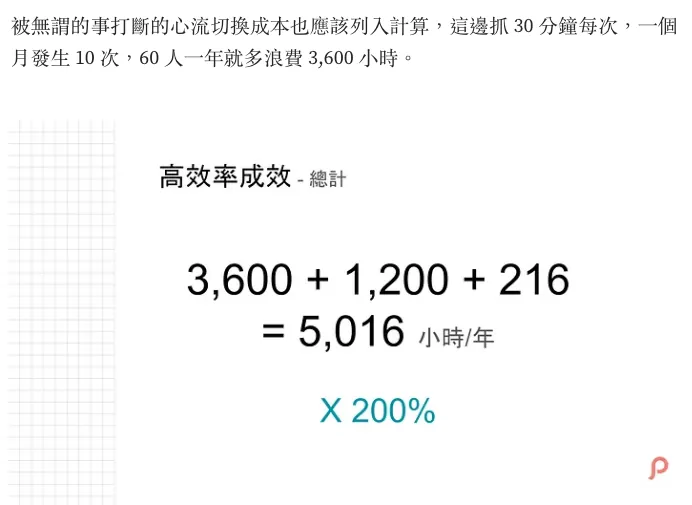
2021 Pinkoi Tech Career Talk — 高效率工程团队大解密
心流切换的意思是,当我们专注在重要的事情上做得正 High! 时,需要暂停去处理其他事情,处理完毕再回来重新进入状态所耗费的时间。
开发 RPA 的效益评估可参考下图,只要开发所需时间跟遇到的频率大于所浪费的时间,就值得投入资源实现:
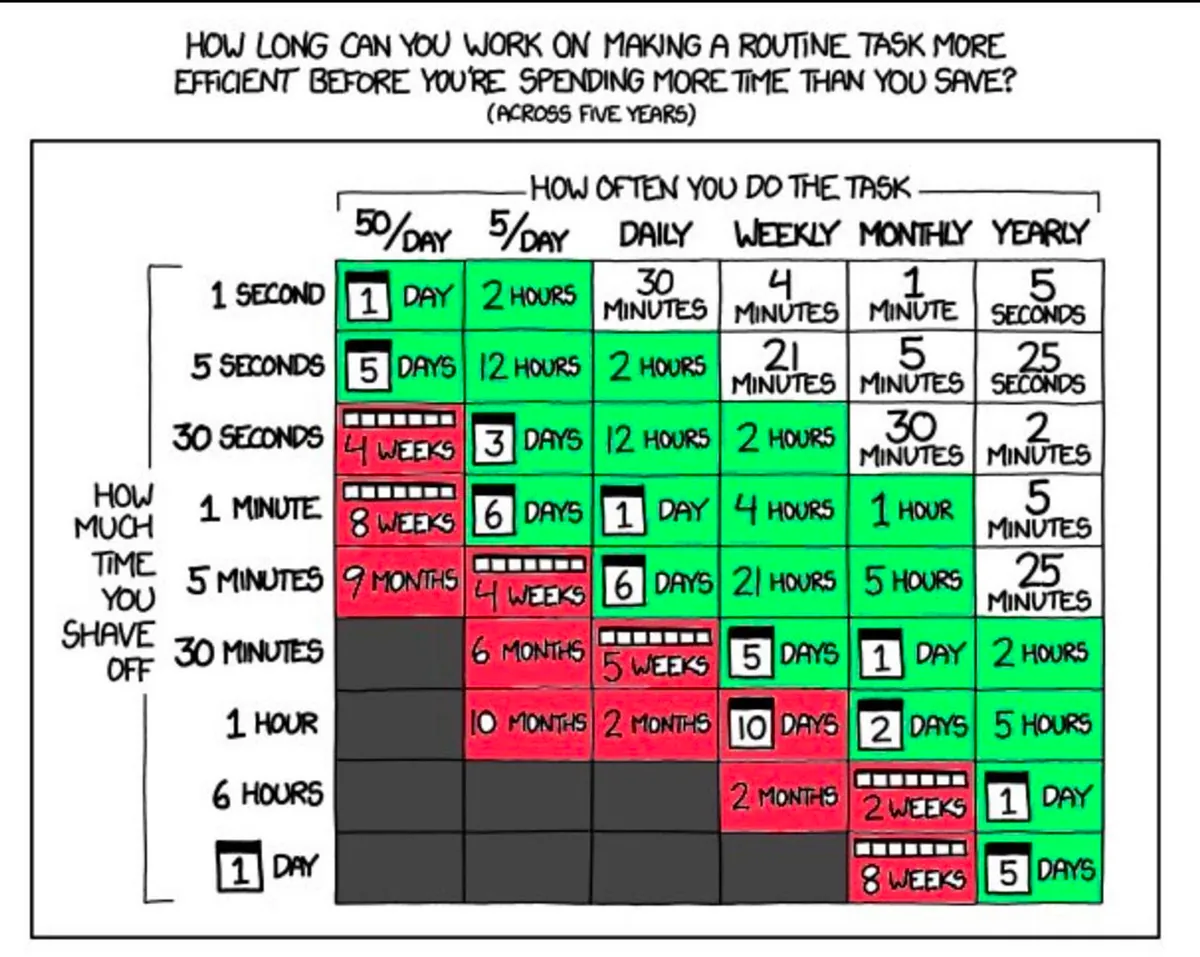
https://twitter.com/swyx/status/1196401158744502272
-
X 轴:任务发生频率 ex: 50/Day (50次一天)
-
Y 轴:任务每次需花费多少人力时间才能完成
-
耗费时间 Range 抓 5 年来算,表格中间表示 5 年下来浪费的时间人力成本
-
白色为可能投入做自动化的时间成本大于能得到的效益,不值得改善
-
绿色表示值得自动化的项目
-
红色为强烈建议转为自动化
除了节省时间之外,自动的制式化流程也能减少人工出错机率,提升稳定性。
Robotic Process Automation 跟 AI 的关系
随著 AI 兴起,RPA 也经常被提及;但我觉得 RPA 与 AI 并无直接关系, 没有 AI 的年代早就有 RPA,企业导入 AI 的帮助可能还没有完善 RPA 的效益来得高,RPA 更多的还是企业文化、工作习惯的问题 ;不过不可否认 AI 确实能帮助 RPA 迈向下一个层次,例如以往 RPA 只能做确切、例行的工作,有了 AI 就能做一些模糊的、较动态的、智能判断的工作。
Robotic Process Automation at Google Workspace
Google Workspace (旧称 G Suite),是我们日常办公协作的好伙伴,信箱使用 Gmail 托管、文件放在 Google Doc、报表使用 Google Sheet、表单使用 Google Form…等等,这些服务之间的串接或是与内外部系统的沟通,都需要我们实现 RPA 来完成。
但 Google 并没有提供直接的 RPA 服务,可以透过以下几个服务达成:
-
No Code: App Sheet (付费服务),让非开发人员直接透过 GUI 搭建服务串接自动化。
-
Low Code: Google Apps Script (免费服务),简单撰写程式就能快速直接的桥接 Google 服务、外部/内部系统。
-
Function as a Service: Cloud Functions (付费服务,提供免费额度),撰写完整程式码、服务,透过 Google Cloud 部署直接执行。
No Code 平台 App Sheet 我没接触过, Cloud Functions 与 Google Apps Script 算蛮有经验的,以下是一些个人之前的使用与选择经验分享:
Cloud Functions
-
需部署执行
-
支援使用多种程式语言撰写:Node.js, Python, Java, Go, PHP, Ruby…
-
支援第三方套件依赖管理、安装并使用
-
支援完整身份验证机制
-
最多执行时间上限: 60 分钟
-
用多少算多少:依照次数、执行时间、不同处理器、使用的记忆体收费
-
受限冷启动问题(太久没呼叫,再次呼叫,第一次会需要较长响应时间)
-
无法直接串接 Google 服务,需要走 Auth/API 验证
-
免费方案如下 Cloud Functions 针对运算时间资源提供永久免费方案,当中包括 GB/秒和 GHz/秒的分配方式。除了 200 万次叫用以外,这个免费方案也提供 400,000 GB/秒和 200,000 GHz/秒的运算时间,以及每月 5 GB 的网际网路资料传输量。免费方案的使用额度,是以上述级别 1 价格的同等美元金额计算。无论执行函式的区域采用的是级别 1 和/或级别 2 价格,系统都会分配同等美元金额给您。不过在扣除免费方案的额度时,系统将以函式执行区域的级别 (级别 1 或级别 2) 为准。 请注意,即便您采用的是免费方案,也必须拥有有效的帐单帐户。
总结来说,Cloud Functions 可以提供较完整与复杂的 RPA 串接功能或是有较多的外部 API 串接需求时比较建议使用 Cloud Functions。
之前使用过 Cloud Functions 的案例有:
-
[Slack ChatGPT 对话机器人]: Slack & ChatGPT Integration
-
[自动签到机器人]: 使用 Python+Google Cloud Platform+Line Bot 自动执行例行琐事
都是与非 Google Workspace 服务整合且须桥接其他外部服务时我会使用。
Google Apps Script
-
方便简单快速
-
完全免费
-
串接服务无需繁琐复杂的 Auth 身份验证 (Google Apps Script 是直接使用当前执行的帐号做为执行身份)
-
内建排程、行事历触发器功能
-
使用 Google 网路执行网路请求
-
只能使用 Google Apps Script (基于 JavaScript) 的语言开发
-
不支援套件管理工具、无版控功能
-
基于安全问题, 无法客制化 Request User-Agent 资讯
-
执行时间上限,脚本必须在 6 分钟内完成工作,否则会被终止。
-
其他限制与配额请参考官方的 GAS 资讯 :
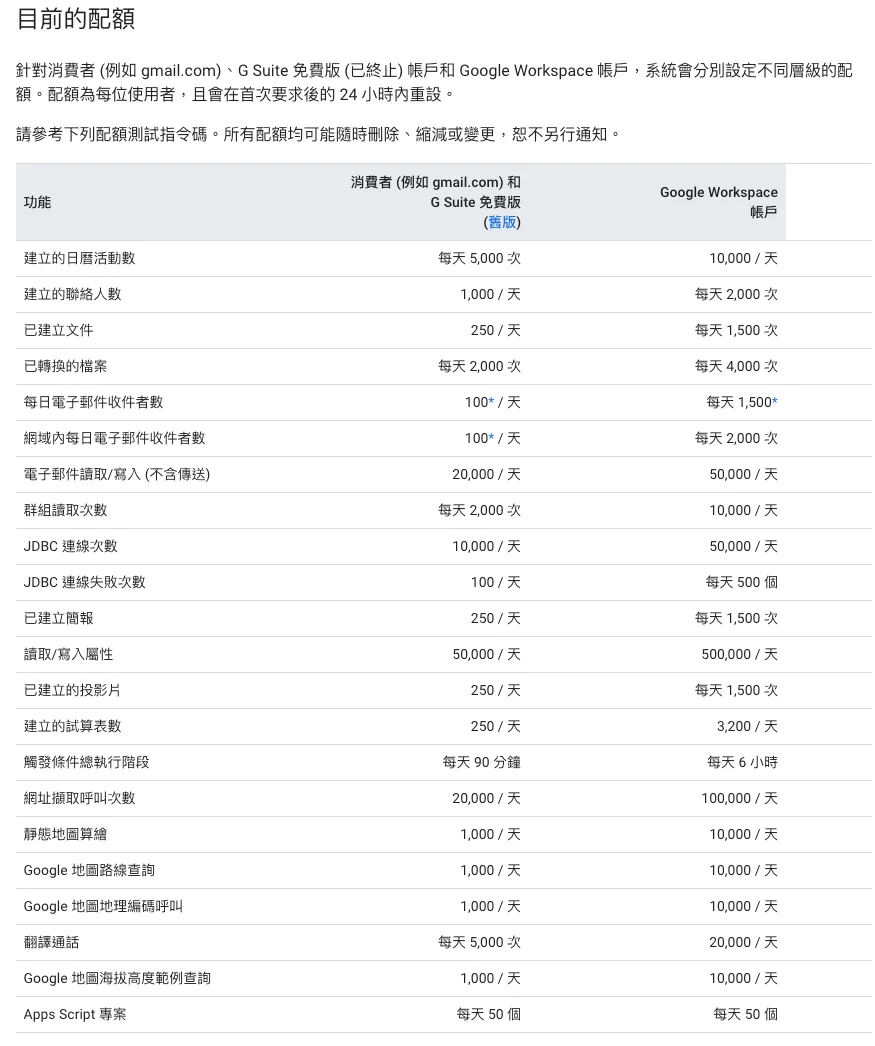
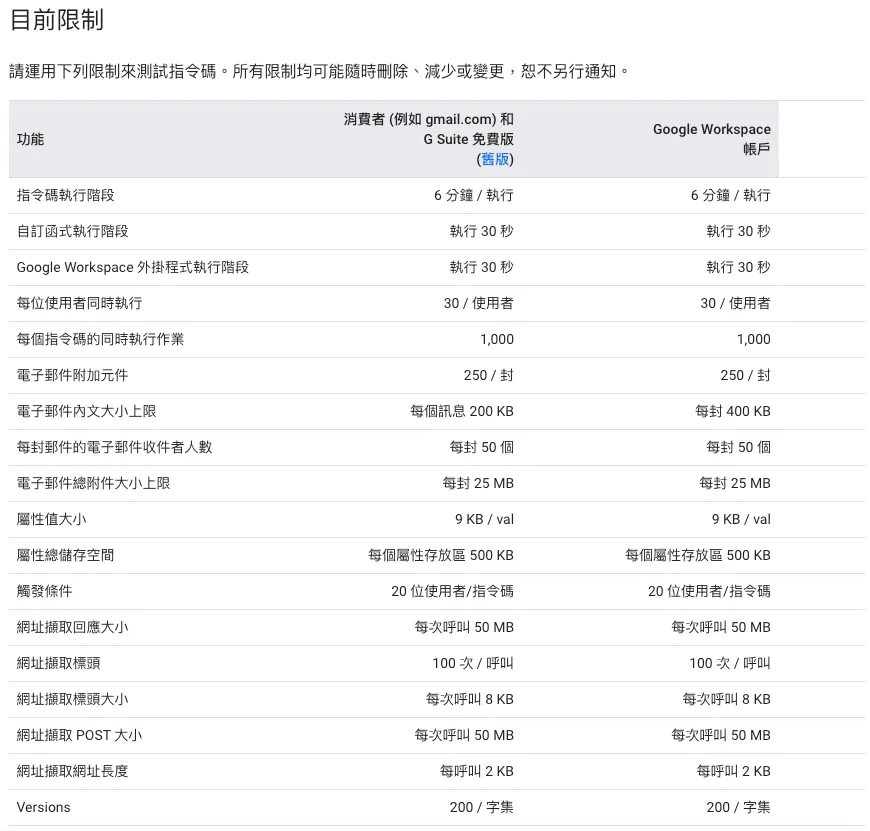
之前使用过 Google Apps Script 的案例有:
-
[串接 Slack x Google Form x Google Sheet]: Slack 打造全自动 WFH 员工健康状况回报系统
-
[串接 Slack x Gmail]: 运用 Google Apps Script 转发 Gmail 信件到 Slack
-
[串接 Google Analytics x Slack]: Crashlytics + Google Analytics 自动查询 App Crash-Free Users Rate
-
[串接 Firebase Crashlytics x Big Query x Slack]: Crashlytics + Big Query 打造更即时便利的 Crash 追踪工具
-
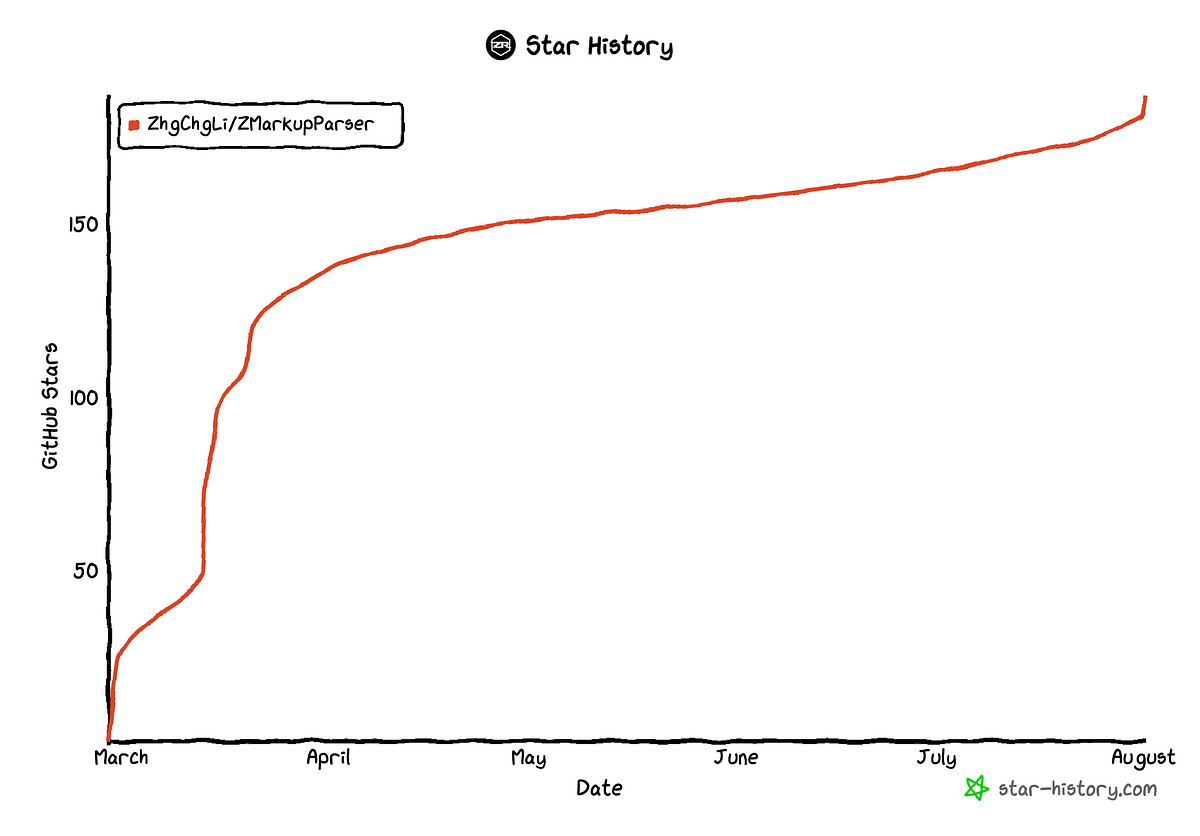
[串接 Github x LineBot]: 使用 Google Apps Script 三步骤免费建立 Github Repo Star Notifier
受限于执行时间与 API Request 客制化限制,只有简单快速的服务我会使用 Google Apps Script 达成;或是需要与 Google 服务串接的需求,我会优先选择使用 Google Apps Script (因为用 Cloud Functions 要多实现完整的 Google 服务身份验证流程)。
Robotic Process Automation with Google Apps Script — 工作日报表 (Google Sheet x Google Analytics)
终于来到本篇的主题,使用 Google Apps Script 实现 Google 服务 RPA 自动化。
背景
产品团队需要每日查询 Google Analytics 数据并填写到 Google Sheet 数据报表上,共团队分析趋势使用;并将每日数据内容发布到 Dashboard 萤幕上,让所有成员掌握目前状况。
同事每日一到公司就要花大约 30 分钟左右完成此任务;如果有其他事要处理就需要等到这件例行工作完成才会开始或会延后发布每日数据讯息。
简单估计一下 RPA 效益:
-
每年消耗支出: 1 人 x 30 mins x 365 天(假日数据也要补) = 182 hours
-
建立自动化成本: 以此案例来说,约需耗费 1 人 x 5天 = 40 hours
因此我们只需要投入一周开发时间,就能长远解决负责查数据同事的工作消耗,他就可以把精力放在更重要的事情上。
目标
我们的目标是使用 Google Apps Script 建立一个 RPA 自动从 Google Analytics 与内部系统报表 API 捞取每日数据并填入 Google Sheet,与搭建一个 Web UI Dashboard。
最终效果
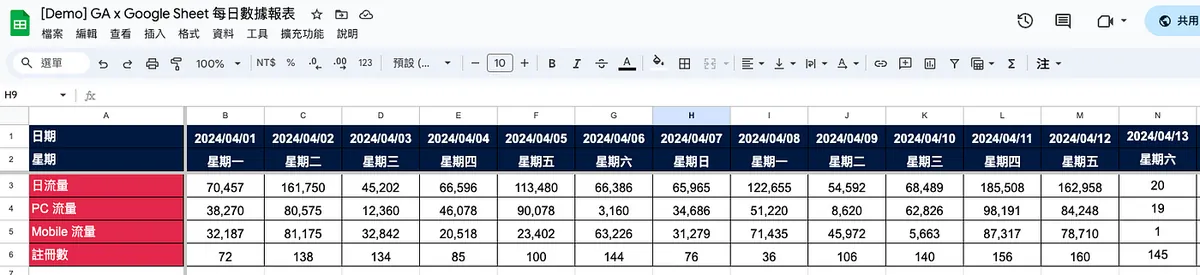
- Google Sheet: https://docs.google.com/spreadsheets/d/1-9lZCpsu3E7eDmO-lMkXJXQ6Y6KK4SiyU6uBODcDcFE/edit?usp=sharing
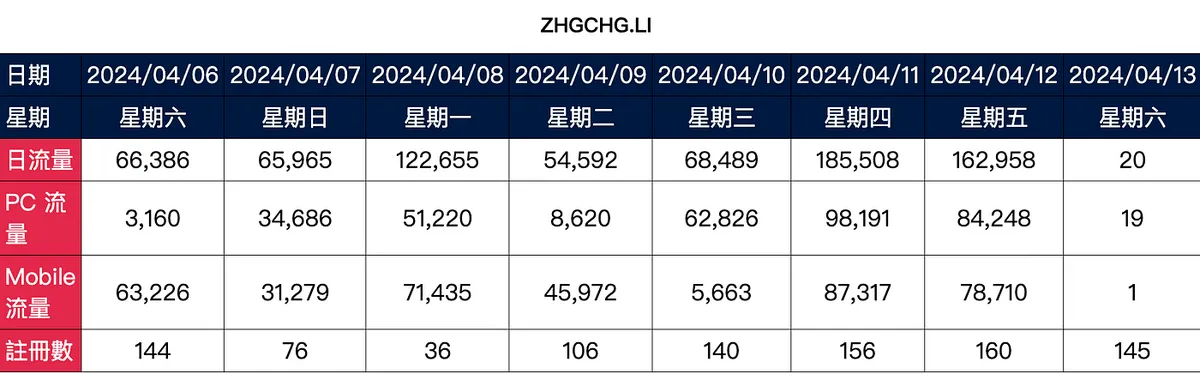
- Web GUI URL: https://script.google.com/macros/s/AKfycbz2Vk-ikU8DSXjpnLq9r6HNAn3zlNAosvDoItG0cxy0bmItRDSVyEzTdwsL2HyFUz99/exec
数据为假数据,纯 Demo 使用;从 2024/04/13 开始会特别低或都保持在 0,因为我的 zhgchg.li GA 真的是「0」流量 Q_Q。
需完成的任务
-
建立 Google Apps Script、熟悉编辑器
-
取得/建立对应日期的 Sheet
-
串接 Google Analytics 捞取数据
-
填充资料
-
设定排程,每日自动执行
声明
因文章说明需求,以下程式码会尽可能少一点抽象,增加说明性,您可依照自己实际的需求进行改写。
文末有附上完整公开的 Google Sheet & Google Apps Script,如果你懒得一步一步走,可以直接从文末附的范本去修改。
Step 1. 建立 Google Apps Script
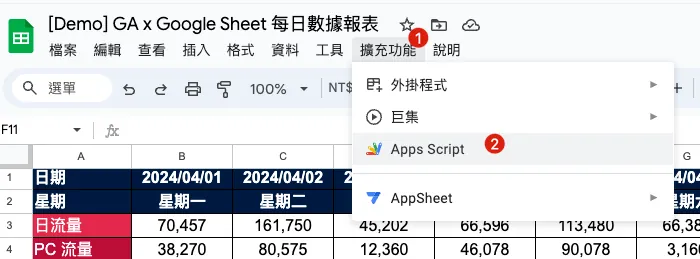
只需在我们要导入自动化的报表上选择「扩充功能」->「Apps Script」就能自动建立与 Google Sheet 报表连结的 Google Apps Script。
另外也可以直接从 Google Apps Script 首页建立 Google Apps Script ,不过这样就不会与 Google Sheet 产生连结。
并非需要连结才能操作对应 Google Sheet ,两种建立方式都可以,差别在于 Script 的所有权归于谁,如果是连结报表的就是归报表拥有者,如果是自己建立的就是归建立著;拥有者会关系到假设该帐号因离职停用,脚本是否会失效被删除。
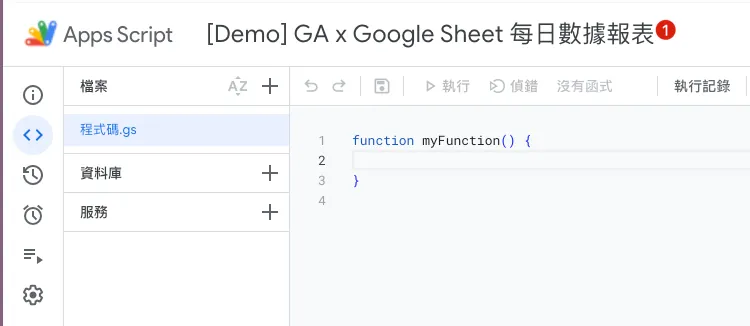
脚本建立后,我们可以先从上方 Rename 我们的脚本专案名称。
Google Apps Script 基础知识
再到下一步撰写程式之前,先补充一些 Google Apps Script 的基础知识。
关于编辑器
预设引入 Google 服务的 SDK (不需特别引入即可呼叫使用):
-
CalendarApp 行事历
-
DocumentApp Google Drive
-
FormApp Google Form
-
SpreadsheetApp Google Sheet
-
GmailApp Gmail
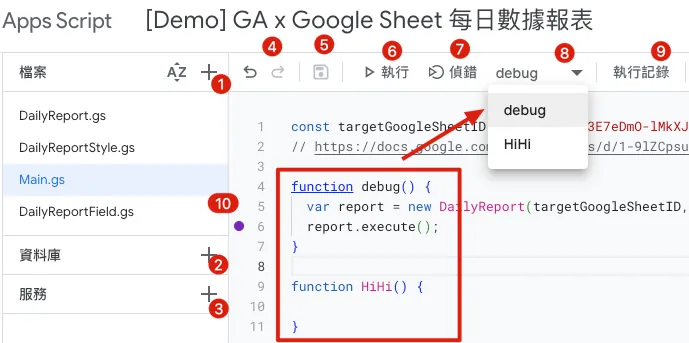
-
档案: 可新增多个 .gs 档案存放不同物件程式码,方便整理;所有档案都会在同个 Namespace、生命周期下执行,因此要注意物件名称、变数名称如果重复可能会互相覆盖。 除 .gs 指令码 档案外,也能新增 .html HTML Template 档案,用于渲染 Web UI。(后面会再介绍)
-
资料库: 别人撰写好的资料库 (a.k.a Lib) 我们可以透过他的 Script ID 引入使用,当然我们撰写好的程式也能部署成资料库给别人用。 另外也有一些大神帮忙封装的工具可以用,缺点是只能从 Google 搜寻 Script ID,官方并没有正式的资料库列表共查询使用。 e.g. HTML Parser Tool Cheer.io Script ID:
1ReeQ6WO8kKNxoaA_O0XEQ589cIrRvEBA9qcWpNqdOP17i47u6N9M5Xh0 -
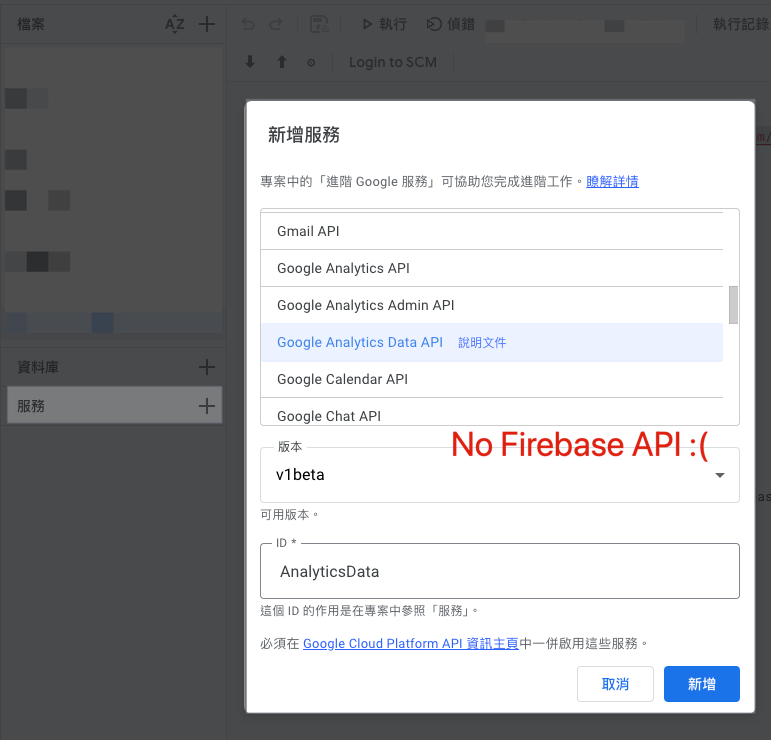
服务: Google 服务的 SDK,预设没有引入的服务可以再此追加引入使用。 e.g. Google Analytics Data
-
还原、下一步操作
-
储存 或 Control + s
-
执行 或 Control + r 遇到错误直接在 Console 提示并终止脚本
-
侦错 有下 Break point (10) 的地方执行到会暂停中断并跳出右侧 Debug View,可按继续执行 遇到错误会暂停中断并跳出右侧 Debug View
-
侦错、执行的目标方法(Function Name) 仅能选择当前选择的档案所拥有的方法。
-
查看编辑器执行纪录
另外还有一点就是排版,有的浏览器按下「Control + [」进行缩排时会触发返回上一页,这点要注意!
Google Apps Script GitHub Assistant Chrome Extension 版控外挂
- 建议安装此 Extension 让 Google Apps Script 与 git 串接,使其有版本控制功能,防止心血不小心改坏。

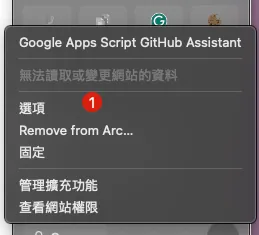
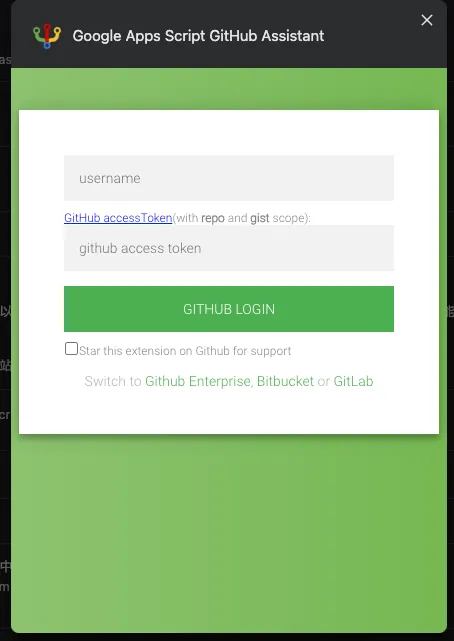
- 如果遇到 Push/Pull Error 或点了没反应,请先按照上面步骤「选项」-> 连接 Github or 重新验证一次 Google 授权,即可。
Logger Message
可使用以下 Script 搭配 Debug 就能在底下 Console Print 出 Debug Log。
Logger.log("Hi")
执行纪录、错误资讯
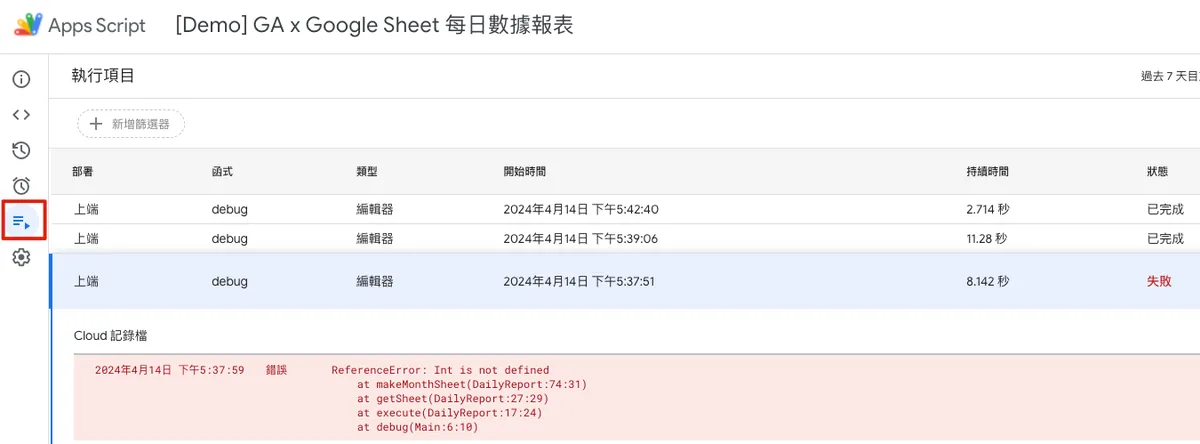
如果在编辑器上执行时的 Log 或报错会直接显示,如果要查讯执行纪录或自动执行时发生的错误,可到「执行项目」页签查看。
自动触发
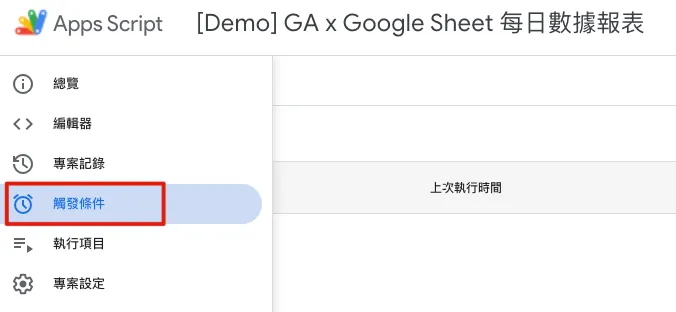
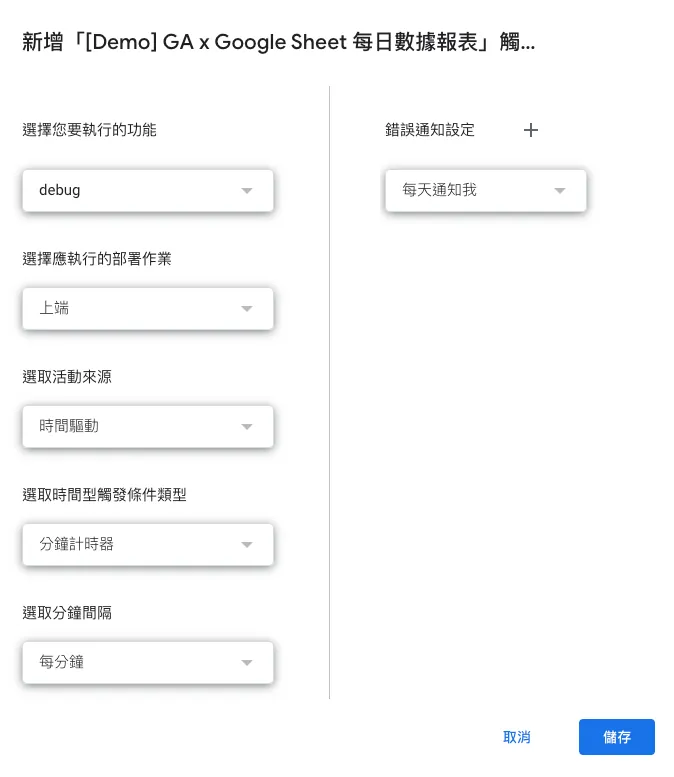
「触发条件」页签可设定脚本中的方法该如何自动触发执行,可以设定的自动触发条件有:
-
当 Google Sheet:开启时、编辑时、内容变更时、提交表单时 执行
-
排程周期触发:每 X 分钟、X 小时、X 日、X 周、X 月 执行一次
-
特定日期触发:YYYY-MM-DD HH:MM 时执行
-
当 行事历:更新时 执行
错误通知设定,可设定当脚本执行出错时如何通知你。
授予执行权限身份
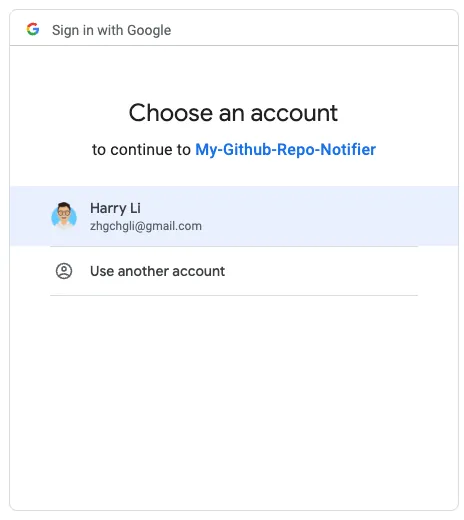
首次执行/部署或新增引入的服务、资源,都需要重新跑一次身份授权,授权完之后的执行都会用你授权的身份执行,所以也要确保你授权(通常是当前)的帐号有该资源、服务的权限。(e.g. 例如要有该 Google Sheet 权限)。
跳出帐号选择 Pop-up 后选择授权执行的帐号(通常是选当前 Google Apps Script 帐号):
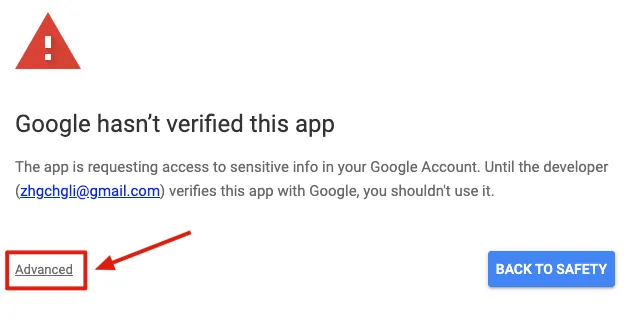
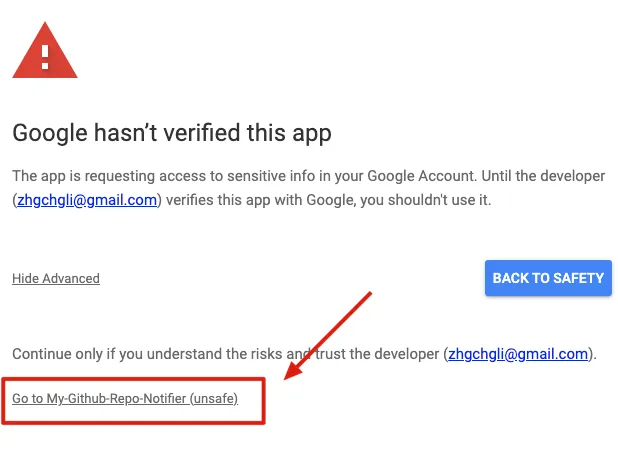
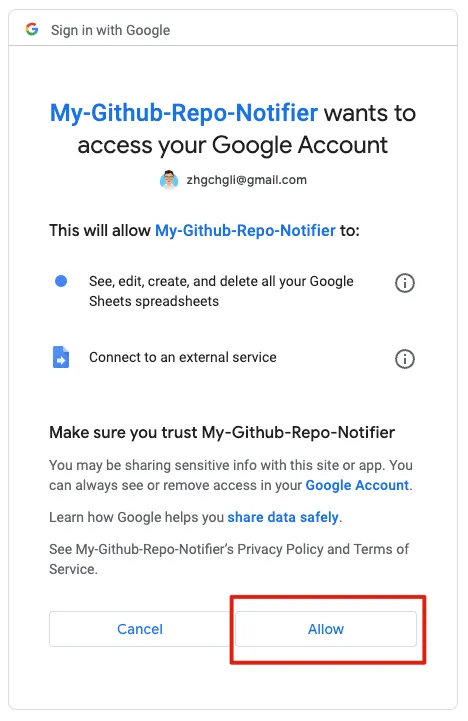
出现「Google hasn’t verified this app」因为我们要开发的 App 是给自己用的,不需经过 Google 验证。
直接点击「Advanced」->「Go to XXX (unsafe)」->「Allow」即可:
完成授权后就能成功执行脚本,如果没有改动资源不需要再重新授权。
2. 取得/建立对应日期的 Sheet
了解完基础知识后,我们就可以撰写第一个功能的程式了。
我们建立以下多个档案方便我们存放不同物件
DailyReportStyle.gs 栏位样式物件:
class HeaderStyle {
  constructor() {
    this.color = "#ffffff";
    this.backgroundColor = "#e3284b";
    this.bold = false;
    this.size = 12;
    this.horizontalAlignment = "center";
    this.verticalAlignment = "middle";
  }
}

class ContentStyle {
  constructor() {
    this.color = "#000000";
    this.backgroundColor = "#ffffff";
    this.bold = false;
    this.size = 12;
    this.horizontalAlignment = "center";
    this.verticalAlignment = "middle";
  }
}

class HeaderDateStyle {
  constructor() {
    this.color = "#ffffff";
    this.backgroundColor = "#001a40";
    this.bold = true;
    this.size = 12;
    this.horizontalAlignment = "center";
    this.verticalAlignment = "middle";
  }
}
DailyReportField.gs 栏位资料物件:
class DailyReportField {
  constructor(name, headerStyle, contentStyle, format = null, value = null) {
    this.name = name;
    this.headerStyle = headerStyle;
    this.contentStyle = contentStyle;
    this.format = format;
    this.value = value;
  }
}
DailyReport.gs 报表主程式逻辑:
class DailyReport {
  constructor(sheetID, date) {
    this.separateSheet = SpreadsheetApp.openById(sheetID);
    this.date = date;

    this.sheetFields = [
      new DailyReportField("日期", new HeaderDateStyle(), new HeaderDateStyle()),
      new DailyReportField("星期", new HeaderDateStyle(), new HeaderDateStyle()),
      new DailyReportField("日流量", new HeaderStyle(), new ContentStyle(), "#,##0", '=INDIRECT(SUBSTITUTE(ADDRESS(1,COLUMN(),4),"1","")&4)+INDIRECT(SUBSTITUTE(ADDRESS(1,COLUMN(),4),"1","")&5)'), // =4(PC 流量) + 5(Mobile 流量)
      new DailyReportField("PC 流量", new HeaderStyle(), new ContentStyle(), "#,##0"),
      new DailyReportField("Mobile 流量", new HeaderStyle(), new ContentStyle(), "#,##0"),
      new DailyReportField("注册数", new HeaderStyle(), new ContentStyle(), "#,##0")
    ]

    // 日流量公式分解说明:
    // 1. COLUMN() 函数会回传目前单元格的列号码。
    // 2. ADDRESS(1, COLUMN(), 4) 会以给定的行数(`COLUMN()` 的结果)和固定的列数(1)来生成一个绝对引用的地址。其中,第三个参数 4 表示不带任何美元符号($)的相对地址。比如,如果你在第三列的任何单元格中使用这个函数,它会回传 "C1"。
    // 3. SUBSTITUTE(ADDRESS(1, COLUMN(), 4), "1", "") 会将 ADDRESS 函数产生的地址中的数字 1 移除,因此只保留了列的英文字母,比如:"C"。
    // 4. INDIRECT(SUBSTITUTE(ADDRESS(1, COLUMN(), 4), "1", "") & 4) 这边 & 4 其实应该是 &4。`SUBSTITUTE` 函数的结果会和数字 4 连接,形成 "C4" 这样的字符串,然后 INDIRECT 函数会将这个字符串转换成对应的单元格引用。所以,如果你在列 C 中的任何单元格使用此公式,它会引用 C4。
    // 5. 类似地,`INDIRECT(SUBSTITUTE(ADDRESS(1, COLUMN(), 4), "1", "") & 5)` 会引用相同列的第五行的单元格。比如,如果你在列 C 中的任何单元格使用此公式,它会引用 C5。
    // 6. 最后,这两个 INDIRECT 函数引用的单元格值相加。
  }

  execute() {
    const sheet = this.getSheet();

  }

  // 取得给定日期的目标 Sheet
  getSheet() {
    // 以月来区分 Sheet,找到当月 Sheet
    var thisMonthSheet = this.separateSheet.getSheetByName(this.getSheetName());
    if (thisMonthSheet == null) {
      // 无则建立新的月 Sheet
      thisMonthSheet = this.makeMonthSheet();
    }

    return thisMonthSheet;
  }

  // 月 Sheet 命名规则
  getSheetName() {
    return Utilities.formatDate(this.date, "GMT+8", "yyyy-MM");
  }

  // 建立新的月 Sheet
  makeMonthSheet() {
    // 新增当月 Sheet,移动到第一个位子
    var thisMonthSheet = this.separateSheet.insertSheet(this.getSheetName(), {index: 0});
    thisMonthSheet.activate();
    this.separateSheet.moveActiveSheet(1);

    // 新增第一栏,栏位名称、设定 Pinned、宽度 200
    thisMonthSheet.insertColumnsBefore(1, 1);
    thisMonthSheet.setFrozenColumns(1);
    thisMonthSheet.setColumnWidths(1, 1, 200);

    // 填充栏位名称
    for(const currentRow in this.sheetFields) {
      const sheetField = this.sheetFields[currentRow];
      const text = sheetField.name;
      const style = sheetField.headerStyle;

      const range = thisMonthSheet.getRange(parseInt(currentRow) + 1, 1);
      this.setContent(range, text, style);
      range.setHorizontalAlignment("left");
    }

    // 设定栏高
    thisMonthSheet.setRowHeights(1, Object.keys(this.sheetFields).length, 30);

    // 设定 Pinned 第一、二列(日期、星期)
    thisMonthSheet.setFrozenRows(2);

    // 新增总计栏位
    thisMonthSheet.insertColumnsAfter(thisMonthSheet.getLastColumn(), 1); // 新增一栏在最后一栏
    const summaryColumnIndex = thisMonthSheet.getLastColumn() + 1;

    // 填充总计栏位
    for(const currentRow in this.sheetFields) {
      const sheetField = this.sheetFields[currentRow];
      const summaryRowIndex = parseInt(currentRow) + 1;

      const range = thisMonthSheet.getRange(summaryRowIndex, summaryColumnIndex);
      const style = sheetField.contentStyle;

      if (summaryRowIndex == 1) {
        // 日期...
        this.setContent(range, "总计", style);
      } else if (summaryRowIndex == 2) {
        // 星期...merge...
        const mergeRange = thisMonthSheet.getRange(1, summaryColumnIndex, summaryRowIndex, 1);
        this.setContent(mergeRange, "总计", style);
        mergeRange.merge();
      } else {
        this.setContent(range, '=IFERROR(SUM(INDIRECT(SUBSTITUTE(ADDRESS(1, 1, 4), "1", "") & '+summaryRowIndex+'):INDIRECT(SUBSTITUTE(ADDRESS(1, COLUMN() - 1, 4), "1", "") & '+summaryRowIndex+')), 0)', style);

        // 1. IFERROR(value, [value_if_error]) 函数用于判断公式中是否存在错误,并在有错误时返回指定的值。它接受两个参数:`value` 是需要计算的表达式或函数,`value_if_error` 是当 value 发生错误时返回的值。在这个情境下,如果 SUM 函数中的计算发生错误,则返回 0。
        // 2. SUM(range) 函数用于计算范围内所有数字的总和。
        // 3. INDIRECT(ref_text, [is_A1_notation]) 函数将文字字串转换成单元格引用。这里使用 INDIRECT 函数是为了动态生成所需的参照范围。
        // 4. SUBSTITUTE(text, old_text, new_text, [instance_num]) 函数在文字字串中替换指定的文字。这里使用 SUBSTITUTE 是为了将 ADDRESS 函数回传的地址中的 "1" 替换成其他内容。
        // 5. ADDRESS(row, column, [abs_num], [a1], [sheet]) 函数根据给定的行列号码回传对应的单元格地址。在这里,ADDRESS(1, 1, 4) 生成了第一行第一列的单元格地址,但是由于 abs_num 是 4,所以地址不包含工作表名称和固定符号 $。类似地,`ADDRESS(1, COLUMN() - 1, 4)` 产生了从第一行到当前列前一列的单元格地址。
        // 6. COLUMN() 函数回传当前单元格的列号。
        // 7. summaryRowIndex = 所在列

      }
    }

    return thisMonthSheet;
  }

  setContent(range, text, style) {
    if (String(text) != "") {
      range.setValue(text);
    }

    range.setBackgroundColor(style.backgroundColor);
    range.setFontColor(style.color);

    if (style.bold) {
      range.setFontWeight("bold");
    }

    range.setHorizontalAlignment(style.horizontalAlignment);
    range.setVerticalAlignment(style.verticalAlignment);
    range.setFontSize(style.size);
    range.setBorder(true, true, true, true, true, true, "black", SpreadsheetApp.BorderStyle.SOLID);
  }
}
Main.gs 做为主程式入口:
const targetGoogleSheetID = "1-9lZCpsu3E7eDmO-lMkXJXQ6Y6KK4SiyU6uBODcDcFE"
// https://docs.google.com/spreadsheets/d/1-9lZCpsu3E7eDmO-lMkXJXQ6Y6KK4SiyU6uBODcDcFE/edit#gid=275710641

function debug() {
  var report = new DailyReport(targetGoogleSheetID, new Date());
  report.execute();
}
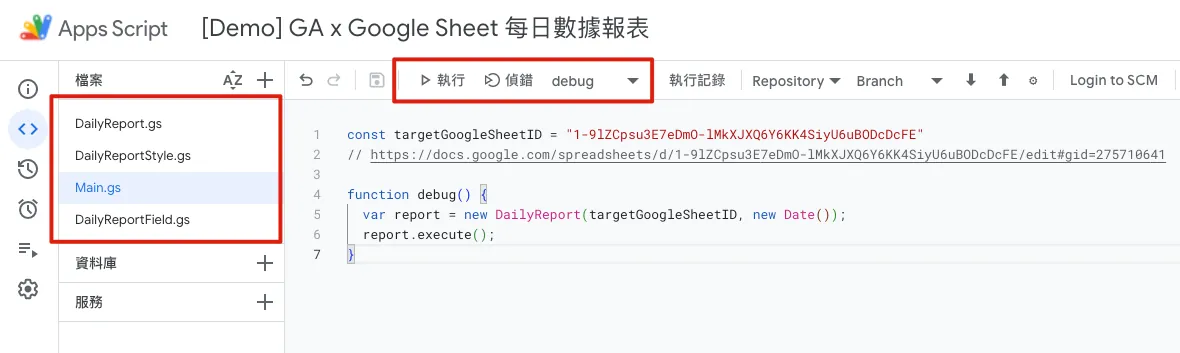
完成后我们回到「 Main.gs 」选择「debug」并按下侦错,查看执行结果是否正确、有无出错。
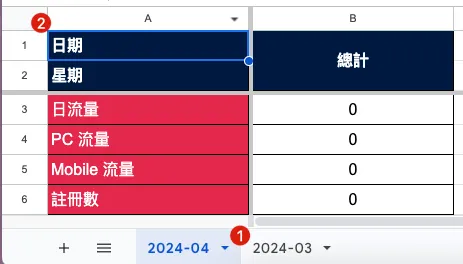
执行正确回到报表会出现当前新月份,并带入预设栏位与总计栏位,如果已存在则不会有反应。
3. 串接 Google Analytics 捞取数据
首先需要新增「AnalyticsData」服务:
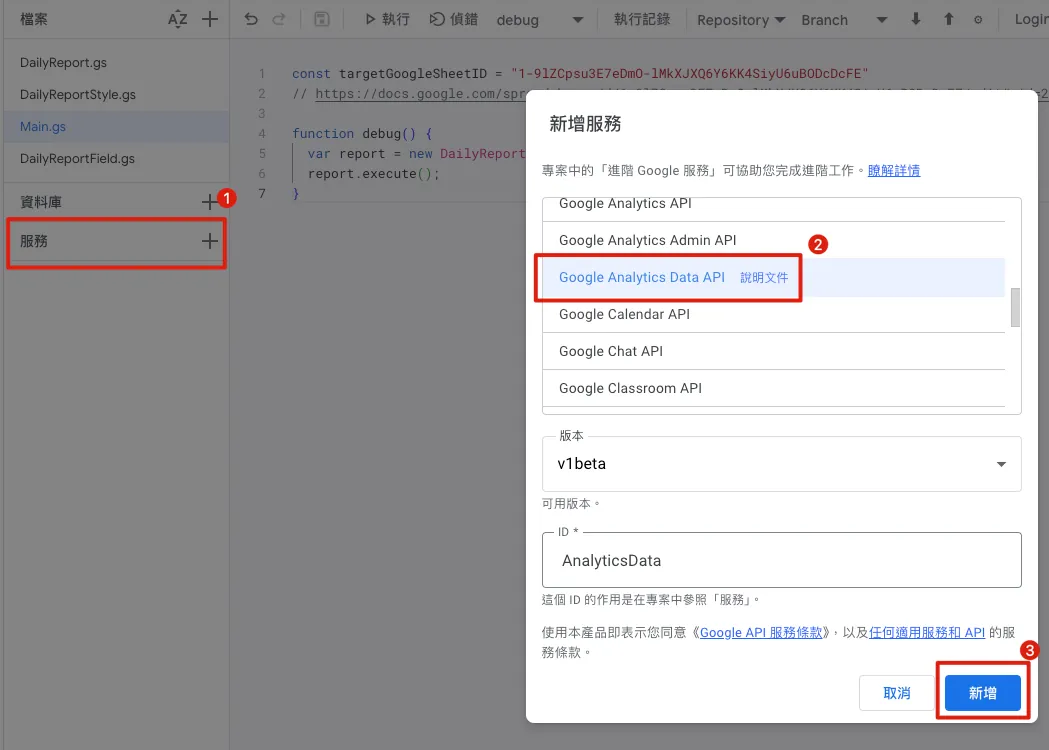
使用 GA4 Debug Tool 构建查询条件:
-
可边比照 GA 4 后台筛选条件构建
-
本文以查询 Sessions 数为例,区分装置 Grouping
登入授权后选择目标资源:
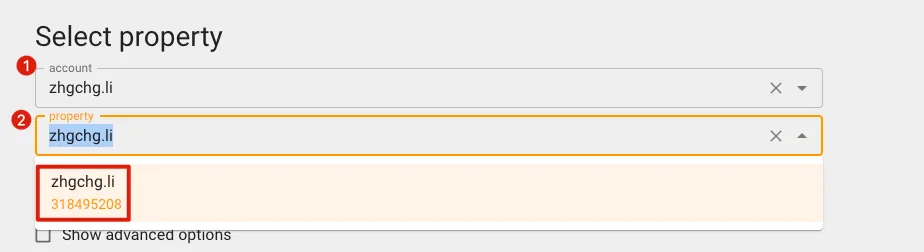
记下 property 底下显示的数字,即为你要查询的资源 GA Property ID。
设定查询参数、Filter 条件:
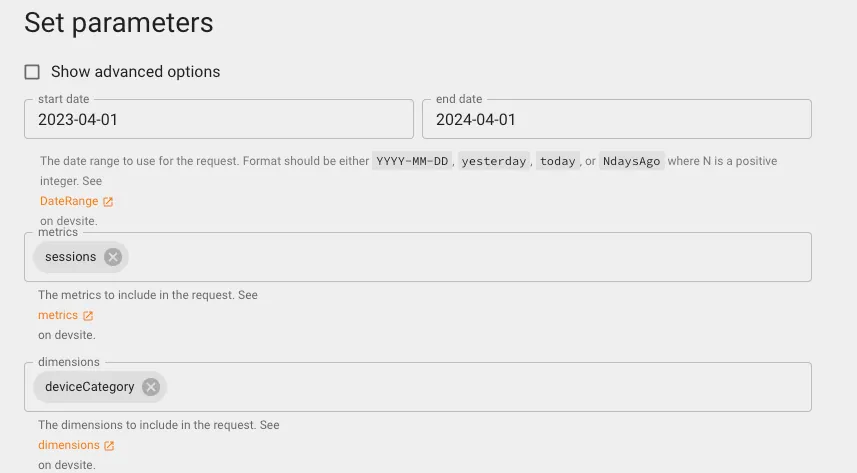
按下「Make Reqeust」取得 Response 结果:
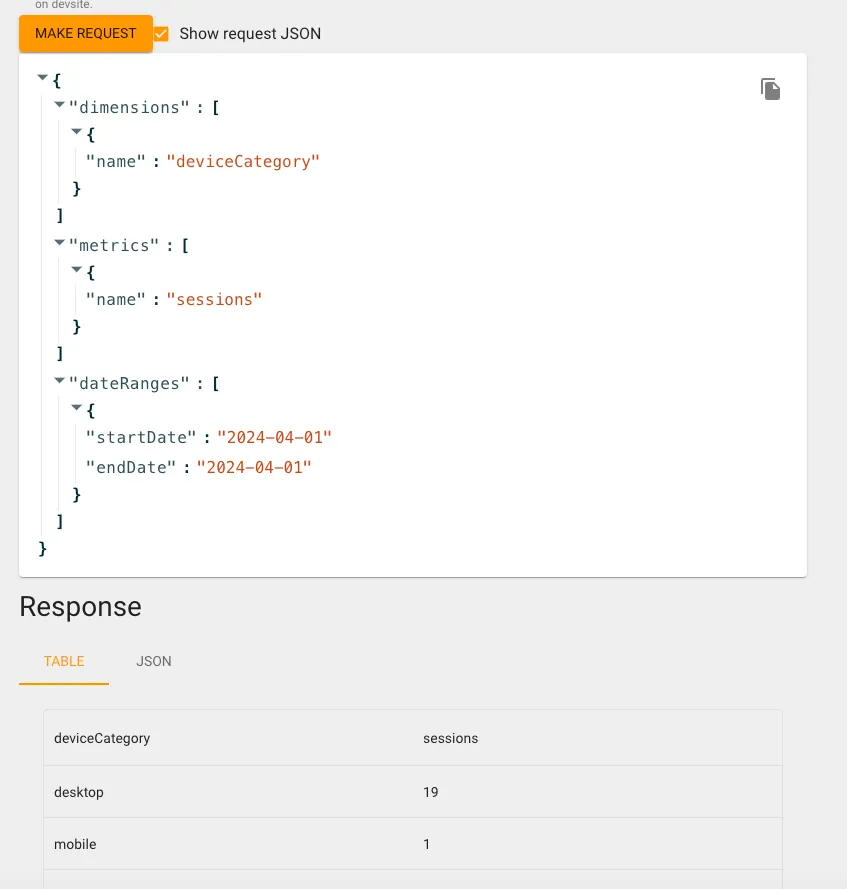
可同步比较 GA 4 后台同样条件的数据是否相同,如果落差太大可能是有 Filter 条件没有加到,要再检查一下。
小记
附上一个行销同事发现的小坑,GA 有些数据会有延迟问题,可能今天查的跟昨天查的数字会不一样(例如跳出率),因此最好能将资料回溯几天才能却保值是最终的数字。
GA Debug Tool 没问题之后我们就能将它转换为 Google Apps Script。
新增一个 GAData.gs 档案:
// Remeber add Google Analytics Data API to Services, or you'll see this error: ReferenceError: AnalyticsData is not defined
// GA Debug Toole: https://ga-dev-tools.web.app/ga4/query-explorer/

class GAData {
  constructor(date) {
    this.date = date;

    const traffic = this.fetchGADailyUsage();
    this.pc_traffic = traffic["desktop"];
    this.mobile_traffic = traffic["mobile"];
  }

  fetchGADailyUsage() {
    const dimensionPlatform = AnalyticsData.newDimension();
    dimensionPlatform.name = "deviceCategory";

    const metric = AnalyticsData.newMetric();
    metric.name = "sessions";

    const dateRange = AnalyticsData.newDateRange();
    // 预设查询给定日范围内资料 e.g. 2024-01-01 ~ 2024-01-01
    dateRange.startDate = this.getDateString();
    dateRange.endDate = this.getDateString();

    // Filter Example:
    // const filterExpression = AnalyticsData.newFilterExpression();
    // const filter = AnalyticsData.newFilter();
    // filter.fieldName = "landingPagePlusQueryString";
    // const stringFilter = AnalyticsData.newStringFilter()
    // stringFilter.value = "/life\\|/article\\|/chat\\|/house\\|/event/230502\\|/event/230310";
    // stringFilter.matchType = "PARTIAL_REGEXP";
    // filter.stringFilter = stringFilter;
    // filterExpression.filter = filter;

    const request = AnalyticsData.newRunReportRequest();
    request.dimensions = [dimensionPlatform];
    request.metrics = [metric];
    request.dateRanges = dateRange;

    // Filter Example:
    // const filterExpression = AnalyticsData.newFilterExpression();
    // filterExpression.expression = filterExpression;
    // request.dimensionFilter = filterExpression;
    // or Not
    // const notFilterExpression = AnalyticsData.newFilterExpression();
    // notFilterExpression.notExpression = filterExpression;
    // request.dimensionFilter = notFilterExpression;

    const report = AnalyticsData.Properties.runReport(request, "properties/" + gaPropertyId).rows;
    // 无资料
    if (report == undefined) {
      return {"desktop": 0, "mobile": 0};
    }

    // [{metricValues=[{value=4517}], dimensionValues=[{value=mobile}]}, {metricValues=[{value=3189}], dimensionValues=[{value=desktop}]}, {metricValues=[{value=63}], dimensionValues=[{value=tablet}]}]

    var result = {};
    report.forEach(function(element) {
      result[element.dimensionValues[0].value] = element.metricValues[0].value;
    });

    return result;
  }

  getDateString() {
    return Utilities.formatDate(this.date, "GMT+8", "yyyy-MM-dd");
  }
}
Main.gs 新增测试内容:
const targetGoogleSheetID = "1-9lZCpsu3E7eDmO-lMkXJXQ6Y6KK4SiyU6uBODcDcFE";
// https://docs.google.com/spreadsheets/d/1-9lZCpsu3E7eDmO-lMkXJXQ6Y6KK4SiyU6uBODcDcFE/edit#gid=275710641

const gaPropertyId = "318495208";

function debug() {
  var report = new DailyReport(targetGoogleSheetID, new Date());
  report.execute();
  //
  var gaData = new GAData(new Date());
  Logger.log(gaData);
}
按下执行或侦错取得程式捞取结果:
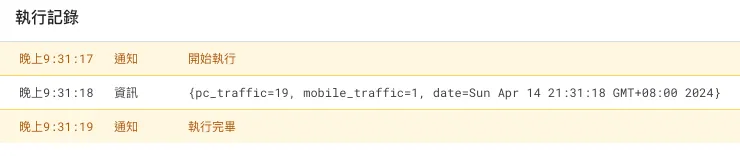
OK! 比对相符。
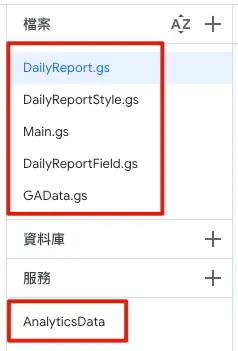
此步骤完成时,目录档案结构如上图。
4. 填充资料
建好 Sheet、查好资料后,再来就是填充资料到栏位中。
调整 DailyReport.gs 增加 by 日期新增栏位&填充资料的逻辑:
class DailyReport {
  constructor(sheetID, date, gaData, inHouseReportData) {
    this.separateSheet = SpreadsheetApp.openById(sheetID);
    this.date = date;

    const dateString = Utilities.formatDate(date, "GMT+8", "yyyy/MM/dd");
    const weekString = ["星期日", "星期一","星期二","星期三","星期四","星期五","星期六"][date.getDay()]; // 取得星期,星期日为0,星期一为1,以此类

    this.sheetFields = [
      new DailyReportField("日期", new HeaderDateStyle(), new HeaderDateStyle(), null, dateString),
      new DailyReportField("星期", new HeaderDateStyle(), new HeaderDateStyle(), null, weekString),
      new DailyReportField("日流量", new HeaderStyle(), new ContentStyle(), "#,##0", '=INDIRECT(SUBSTITUTE(ADDRESS(1,COLUMN(),4),"1","")&4)+INDIRECT(SUBSTITUTE(ADDRESS(1,COLUMN(),4),"1","")&5)'), // =4(PC 流量) + 5(Mobile 流量)
      new DailyReportField("PC 流量", new HeaderStyle(), new ContentStyle(), "#,##0", gaData.pc_traffic),
      new DailyReportField("Mobile 流量", new HeaderStyle(), new ContentStyle(), "#,##0", gaData.mobile_traffic),
      new DailyReportField("注册数", new HeaderStyle(), new ContentStyle(), "#,##0", inHouseReportData.registers)
    ]
  }

  execute() {
    const sheet = this.getSheet();
    const dateColumnIndex = this.makeOrGetDateColumn(sheet); // 取得已存在的更新或建立新的栏位

    // 填充栏位内容
    for(const currentRow in this.sheetFields) {
      const sheetField = this.sheetFields[currentRow];
      const rowIndex = parseInt(currentRow) + 1;

      if (rowIndex != null) {
        const range = sheet.getRange(rowIndex, dateColumnIndex);
        const text = sheetField.value;
        const style = sheetField.contentStyle;
        this.setContent(range, text, style);
        this.setFormat(range, sheetField.format);
      }
    }
  }

  // 取得给定日期的目标 Sheet
  getSheet() {
    // 以月来区分 Sheet,找到当月 Sheet
    var thisMonthSheet = this.separateSheet.getSheetByName(this.getSheetName());
    if (thisMonthSheet == null) {
      // 无则建立新的月 Sheet
      thisMonthSheet = this.makeMonthSheet();
    }

    return thisMonthSheet;
  }

  // 月 Sheet 命名
  getSheetName() {
    return Utilities.formatDate(this.date, "GMT+8", "yyyy-MM");
  }

  // 建立新的月 Sheet
  makeMonthSheet() {
    // 新增当月 Sheet,移动到第一个位子
    var thisMonthSheet = this.separateSheet.insertSheet(this.getSheetName(), {index: 0});
    thisMonthSheet.activate();
    this.separateSheet.moveActiveSheet(1);

    // 新增第一栏,栏位名称、设定 Pinned、宽度 200
    thisMonthSheet.insertColumnsBefore(1, 1);
    thisMonthSheet.setFrozenColumns(1);
    thisMonthSheet.setColumnWidths(1, 1, 200);

    // 填充栏位名称
    for(const currentRow in this.sheetFields) {
      const sheetField = this.sheetFields[currentRow];
      const text = sheetField.name;
      const style = sheetField.headerStyle;

      const range = thisMonthSheet.getRange(parseInt(currentRow) + 1, 1);
      this.setContent(range, text, style);
      range.setHorizontalAlignment("left");
    }

    // 设定栏高
    thisMonthSheet.setRowHeights(1, Object.keys(this.sheetFields).length, 30);

    // 设定 Pinned 第一、二列(日期、星期)
    thisMonthSheet.setFrozenRows(2);

    // 新增总计栏位
    thisMonthSheet.insertColumnsAfter(thisMonthSheet.getLastColumn(), 1); // 新增一栏在最后一栏
    const summaryColumnIndex = thisMonthSheet.getLastColumn() + 1;

    // 填充总计栏位
    for(const currentRow in this.sheetFields) {
      const sheetField = this.sheetFields[currentRow];
      const summaryRowIndex = parseInt(currentRow) + 1;

      const range = thisMonthSheet.getRange(summaryRowIndex, summaryColumnIndex);
      const style = sheetField.contentStyle;

      if (summaryRowIndex == 1) {
        // 日期...
        this.setContent(range, "总计", style);
      } else if (summaryRowIndex == 2) {
        // 星期...merge...
        const mergeRange = thisMonthSheet.getRange(1, summaryColumnIndex, summaryRowIndex, 1);
        this.setContent(mergeRange, "总计", style);
        mergeRange.merge();
      } else {
        this.setContent(range, '=IFERROR(SUM(INDIRECT(SUBSTITUTE(ADDRESS(1, 1, 4), "1", "") & '+summaryRowIndex+'):INDIRECT(SUBSTITUTE(ADDRESS(1, COLUMN() - 1, 4), "1", "") & '+summaryRowIndex+')), 0)', style);
      }
    }

    return thisMonthSheet;
  }

  // 建立或取得日期的栏位
  // 从最近一日往后加一栏位
  makeOrGetDateColumn(sheet) {
    const firstRowColumnsRange = sheet.getRange(1, 1, 1, sheet.getLastColumn()); // 取得第一列(日期)资料范围
    const firstRowColumns = firstRowColumnsRange.getValues()[0]; // 取得资料范围的值 0 = 第一列

    var columnIndex = firstRowColumns.findIndex((date) => (date instanceof Date && Utilities.formatDate(date, "GMT+8", "yyyy/MM/dd") == Utilities.formatDate(this.date, "GMT+8", "yyyy/MM/dd"))); // 找到对应日期的栏位 Index

    if (columnIndex < 0) {
      // Not Found,找到前一日的位子
      var preDate = new Date(this.date);
      preDate.setDate(preDate.getDate() - 1);

      while(preDate.getMonth() == this.date.getMonth()) {
        columnIndex = firstRowColumns.findIndex((date) => (date instanceof Date && Utilities.formatDate(date, "GMT+8", "yyyy/MM/dd") == Utilities.formatDate(preDate, "GMT+8", "yyyy/MM/dd")));
        if (columnIndex >= 0) {
          break;
        }

        preDate.setDate(preDate.getDate() - 1);
      }

      if (columnIndex >= 0) {
        columnIndex += 1;
        sheet.insertColumnsAfter(columnIndex, 1); // 在前一日栏位后新增一栏
        columnIndex += 1;
      }
    } else {
      columnIndex += 1;
    }

    if (columnIndex < 0) {
        sheet.insertColumnsAfter(1, 1); // 默认,直接新增一栏在第一栏后面
        columnIndex = 2;
    }

    // 设定栏位宽度
    sheet.setColumnWidths(columnIndex , 1, 100);

    return columnIndex
  }

  // 设定栏位 Format 样式
  setFormat(range, format) {
    if (format != null) {
      range.setNumberFormat(format);
    }
  }

  // 填充内容到栏位
  setContent(range, text, style) {
    if (String(text) != "") {
      range.setValue(text);
    }

    range.setBackgroundColor(style.backgroundColor);
    range.setFontColor(style.color);

    if (style.bold) {
      range.setFontWeight("bold");
    }

    range.setHorizontalAlignment(style.horizontalAlignment);
    range.setVerticalAlignment(style.verticalAlignment);
    range.setFontSize(style.size);
    range.setBorder(true, true, true, true, true, true, "black", SpreadsheetApp.BorderStyle.SOLID);
  }
}
调整 Main.gs 增加资料串接并在构建阶段赋值:
const targetGoogleSheetID = "1-9lZCpsu3E7eDmO-lMkXJXQ6Y6KK4SiyU6uBODcDcFE";
// https://docs.google.com/spreadsheets/d/1-9lZCpsu3E7eDmO-lMkXJXQ6Y6KK4SiyU6uBODcDcFE/edit#gid=275710641

const gaPropertyId = "318495208";

function debug() {
  const date = new Date();
  const gaData = new GAData(date);
  const inHouseReportData = fetchInHouseReportData(date);

  const report = new DailyReport(targetGoogleSheetID, date, gaData, inHouseReportData);
  report.execute();

}

// 模拟部分数据资料可能是打其他平台 API 取得的。
function fetchInHouseReportData(date) {
  // EXMAPLE REQUEST:
  // var options = {
  //   'method' : 'get',
  //   'headers': {
  //       'Authorization':  'Bearer XXX'
  //   }
  // };
  // OR
  // var options = {
  //   'method' : 'post',
  //   'headers': {
  //       'Authorization':  'Bearer XXX'
  //   },
  //   'payload' : data
  // };

  // var res = UrlFetchApp.fetch(url, options);
  // const result = JSON.parse(res.getContentText());

  // REMEMBER, DUE TO SECURITY REASON, We can't customize user-agent.

  return {"registers": Math.floor(Math.random() * (180 - 30 + 1)) + 30} // MOCK DATA random 30~180
}
完成后我们回到「 Main.gs 」选择「debug」并按下侦错,查看执行结果是否正确、有无出错。
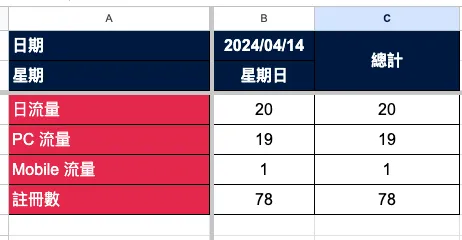
回到 Google Sheet! 成功! 我们成功的自动新增了该日期的资料。
5. 设定排程,每日自动执行
脚本完成后,再来只要设定自动触发条件,就能每日自动完成啰。
调整 Main.gs 新增 cronjob() function:
const targetGoogleSheetID = "1-9lZCpsu3E7eDmO-lMkXJXQ6Y6KK4SiyU6uBODcDcFE";
// https://docs.google.com/spreadsheets/d/1-9lZCpsu3E7eDmO-lMkXJXQ6Y6KK4SiyU6uBODcDcFE/edit#gid=275710641

const gaPropertyId = "318495208";

function debug() {
  cronjob();
}

// 照现实状况来说,通常是今日查昨日数据,才是完整的资料
function cronjob() {
  const yesterday = new Date();
  yesterday.setDate(yesterday.getDate() - 1);

  const gaData = new GAData(yesterday);
  const inHouseReportData = fetchInHouseReportData(yesterday);

  const report = new DailyReport(targetGoogleSheetID, yesterday, gaData, inHouseReportData);
  report.execute();
}

// 模拟部分数据资料可能是打其他平台 API 取得的。
function fetchInHouseReportData(date) {
  // EXMAPLE REQUEST:
  // var options = {
  //   'method' : 'get',
  //   'headers': {
  //       'Authorization':  'Bearer XXX'
  //   }
  // };
  // OR
  // var options = {
  //   'method' : 'post',
  //   'headers': {
  //       'Authorization':  'Bearer XXX'
  //   },
  //   'payload' : data
  // };

  // var res = UrlFetchApp.fetch(url, options);
  // const result = JSON.parse(res.getContentText());

  // REMEMBER, DUE TO SECURITY REASON, We can't customize user-agent.

  return {"registers": Math.floor(Math.random() * (180 - 30 + 1)) + 30} // MOCK DATA random 30~180
}
在编辑器上切换到「触发条件」页签,选择右下角「新增触发条件」:
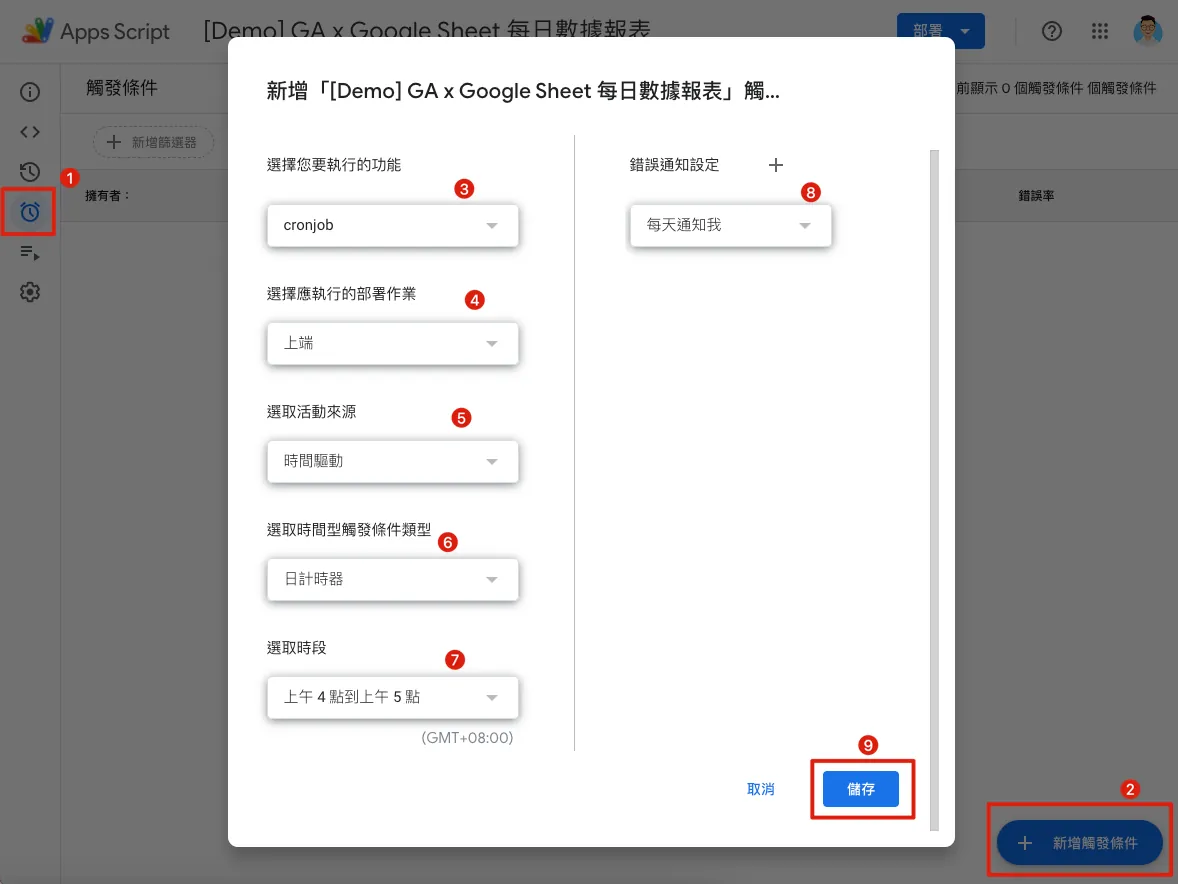
-
选择您要执行的功能:刚新增的
Main.gsFunctioncronjob -
选择应执行的部署作业:上端 (Head, 意为最新版)
-
选取活动来源:时间驱动
-
选取时间型触发条件类型:日计时器
-
选取时段:AM 4:00 — AM 5:00 (GMT+08:00) 通常在 AM 4:00 一到就会执行。
-
错误通知设定:当脚本发生错误时是要马上通知,还是每日汇整一次
储存设定,完成。
之后可以去「执行项目」页签查看执行纪录结果:
至此我们已完成自动化查询、新增资料、填入资料的报表 RPA 功能.🎉🎉🎉
搭建 Web GUI Dashboard
再来有个次要需求,我们需要建立一个简单的 Web 呈现每日数据(类似战情中心的概念)会在团队背后墙上大萤幕上直接显示。
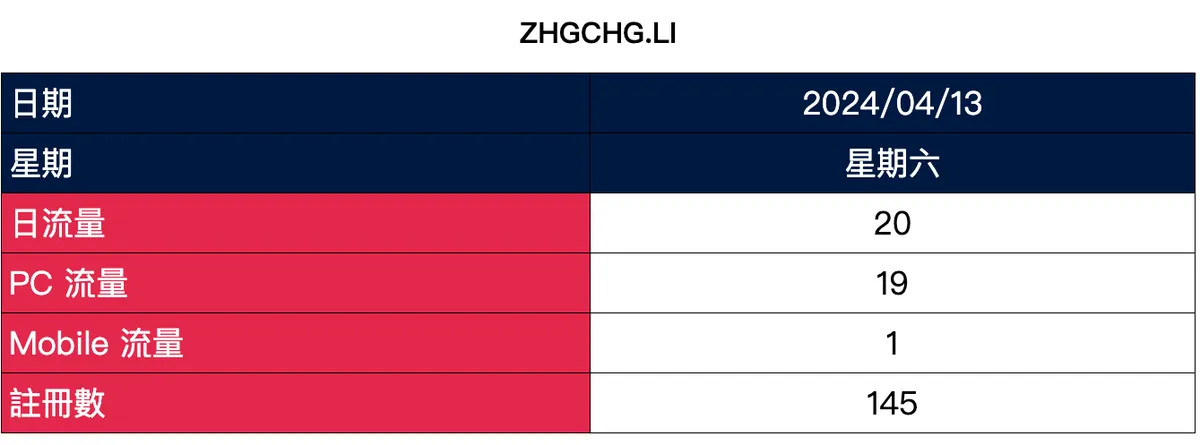
效果如下图:
新增 Web_DailyReport.gs 撰写读取 Google Sheet 并将栏位、样式转换为 HTML 格式呈现:
class WebDailyReport {
  constructor(sheetID, dayCount) {
    this.separateSheet = SpreadsheetApp.openById(sheetID);
    this.dayCount = dayCount;
    this.sheetRows = [
      "日期",
      "星期",
      "日流量",
      "PC 流量",
      "Mobile 流量",
      "注册数"
    ];
  }

  allData(startDate) {
    var sheetRowsIndexs = {};
    var count = this.dayCount;
    var result = [];
    while (count >= 0) {
      const preDate = new Date(startDate);
      preDate.setDate(preDate.getDate() - (this.dayCount - count));
      const sheetName = Utilities.formatDate(preDate, "GMT+8", "yyyy-MM");
      const targetSheet = this.separateSheet.getSheetByName(sheetName);
      if (targetSheet != null) {
        const firstRowColumnsRange = targetSheet.getRange(1, 1, 1, targetSheet.getLastColumn()); // 取得第一列(日期)资料范围
        const firstRowColumns = firstRowColumnsRange.getValues()[0]; // 取得资料范围的值 0 = 第一列
        var columnIndex = firstRowColumns.findIndex((date) => (date instanceof Date && Utilities.formatDate(date, "GMT+8", "yyyy/MM/dd") == Utilities.formatDate(preDate, "GMT+8", "yyyy/MM/dd"))); // 找到对应日期的栏位 Index

        if (columnIndex >= 0) {
          columnIndex = parseInt(columnIndex) + 1;
          if (sheetRowsIndexs[sheetName] == undefined \\|\\| sheetRowsIndexs[sheetName] == null) {
            sheetRowsIndexs[sheetName] = this.sheetRows.map((sheetRow) => this.getFieldRow(targetSheet, sheetRow));
          }

          if (result.length == 0) {
            // 新增第一栏
            const ranges = sheetRowsIndexs[sheetName].map((rowIndex) => (rowIndex != null) ? (targetSheet.getRange(rowIndex, 1)) : (null));
            result.push(this.makeValues(ranges));
          }

          const ranges = sheetRowsIndexs[sheetName].map((rowIndex) => (rowIndex != null) ? (targetSheet.getRange(rowIndex, columnIndex)) : (null));
          result.push(this.makeValues(ranges));
        }
      }

      count -= 1;
    }

    var transformResult = {};
    for (const columnIndex in result) {
      for (const rowIndex in result[columnIndex]) {
        if (transformResult[rowIndex] == undefined) {
          transformResult[rowIndex] = [];
        }

        if (columnIndex == 0) {
          transformResult[rowIndex].unshift(result[columnIndex][rowIndex]);
        } else {
          transformResult[rowIndex].splice(1, 0, result[columnIndex][rowIndex]);
        }

      }
    }

    return transformResult;
  }

  // 转换 栏位属性 值成 显示用物件
  makeValues(ranges) {
    const data = ranges.map((range) => (range != null) ? (range.getDisplayValues()) : (null)).map((values) => (values != null) ? (values[0][0]) : (null));
    const backgroundColors = ranges.map((range) => (range != null) ? (range.getBackgrounds()) : (null)).map((values) => (values != null) ? (values[0][0]) : (null));
    const colors = ranges.map((range) => (range != null) ? (range.getFontColorObjects()) : (null)).map((values) => (values != null) ? (values[0][0]) : (null));
    const sizes = ranges.map((range) => (range != null) ? (range.getFontSizes()) : (null)).map((values) => (values != null) ? (values[0][0]) : (null));
    const bolds = ranges.map((range) => (range != null) ? (range.getFontWeights()) : (null)).map((values) => (values != null) ? (values[0][0]) : (null));
    const horizontalAlignments = ranges.map((range) => (range != null) ? (range.getHorizontalAlignments()) : (null)).map((values) => (values != null) ? (values[0][0]) : (null));
    const verticalAlignments = ranges.map((range) => (range != null) ? (range.getVerticalAlignments()) : (null)).map((values) => (values != null) ? (values[0][0]) : (null));

    var result = [];
    for(const index in data) {
        const row = data[index];
        result.push({
          "value": row,
          "backgroundColor": backgroundColors[index],
          "color": this.colorStripper(colors[index]?.asRgbColor()?.asHexString()),
          "size": sizes[index],
          "bold": bolds[index],
          "horizontalAlignment": this.alignConventer(horizontalAlignments[index]),
          "verticalAlignment": verticalAlignments[index]
        });
    }

    return result;
  }

  colorStripper(colorString) {
    if (colorString == undefined \\|\\| colorString == null) {
      return null
    }

    if (colorString.length == 9) {
      return "#"+colorString.substring(3, 9);
    } else {
      return colorString;
    }
  }

  alignConventer(horizontalAlignment) {
    if (horizontalAlignment == undefined \\|\\| horizontalAlignment == null) {
      return null
    }

    return horizontalAlignment.replace('general-', '')
  }

  getFieldRow(sheet, name) {
    const firstColumnRowsRange = sheet.getRange(1, 1, sheet.getLastRow(), 1); // 取得第一栏(栏位)资料范围
    const firstColumnRows = firstColumnRowsRange.getValues(); // 取得资料范围的值
    const foundIndex = firstColumnRows.findIndex((firstColumnRow) => firstColumnRow[0] == name);

    if (foundIndex < 0) {
      return null;
    } else {
      return foundIndex + 1;
    }
  }
}
Main.gs 增加 Web 请求 Handle:
const targetGoogleSheetID = "1-9lZCpsu3E7eDmO-lMkXJXQ6Y6KK4SiyU6uBODcDcFE";
// https://docs.google.com/spreadsheets/d/1-9lZCpsu3E7eDmO-lMkXJXQ6Y6KK4SiyU6uBODcDcFE/edit#gid=275710641

const gaPropertyId = "318495208";

function debug() {
  cronjob();
}

function cronjob() {
  const yesterday = new Date();
  yesterday.setDate(yesterday.getDate() - 1);

  const gaData = new GAData(yesterday);
  const inHouseReportData = fetchInHouseReportData(yesterday);

  const report = new DailyReport(targetGoogleSheetID, yesterday, gaData, inHouseReportData);
  report.execute();
}

function doGet(e) {
  return HtmlService.createTemplateFromFile('Web_DailyReport_ Scaffolding').evaluate();
}

function getDailyReportBody() {
  const html = HtmlService.createTemplateFromFile('Web_DailyReport_Body').evaluate().getContent();
  return html;
}

// FOR POST
// function doPost(e) {
//  ref: https://developers.google.com/apps-script/guides/web?hl=zh-tw
// }


// 模拟部分数据资料可能是打其他平台 API 取得的。
function fetchInHouseReportData(date) {
  // EXMAPLE REQUEST:
  // var options = {
  //   'method' : 'get',
  //   'headers': {
  //       'Authorization':  'Bearer XXX'
  //   }
  // };
  // OR
  // var options = {
  //   'method' : 'post',
  //   'headers': {
  //       'Authorization':  'Bearer XXX'
  //   },
  //   'payload' : data
  // };

  // var res = UrlFetchApp.fetch(url, options);
  // const result = JSON.parse(res.getContentText());

  // REMEMBER, DUE TO SECURITY REASON, We can't customize user-agent.

  return {"registers": Math.floor(Math.random() * (180 - 30 + 1)) + 30} // MOCK DATA random 30~180
}
新增 Web_DailyReport_ Scaffolding.html Web Dashboard 框架,由于我们的战情室萤幕要做到自动更新内容,因此我们建立一个 Web 骨架,在其中定时用 Ajax 去捞取 HTML 内容:
<!DOCTYPE html>
<html>
  <head>
    <base target="_top">
    <script>
      function onSuccess(html) {
        if (html != null) {
          var div = document.getElementById('result');
          div.innerHTML = html;
        }
     }
     setInterval(()=>{
       google.script.run.withSuccessHandler(onSuccess).getDailyReportBody()
     }, 1000 * 60 * 60 * 1);
     google.script.run.withSuccessHandler(onSuccess).getDailyReportBody();
    </script>
  </head>
  <body>
    <div id="result">Loading...</div>
  </body>
</html>
新增 Web_DailyReport_Body.html 实际渲染资料成 HTML 的地方:
<!DOCTYPE html>
<html>
  <head>
    <base target="_top">
    <style>
    table {
        border-collapse: collapse;
        width: 100%;
        text-align: center;
    }
    th, td {
        border: 1px solid #000000;
        padding: 8px;
        text-align: center;
        font-size: 36px;
    }
      </style>
  </head>
  <body>
      <h1 style="text-align:center">ZHGCHG.LI</h1>
      <table id="dataTable">
        <tbody>
          <?
          // 显示近 7 天数据
          const dashboard = new WebDailyReport(targetGoogleSheetID, 7);
          // 从昨天开始
          const yesterday = new Date();
          yesterday.setDate(yesterday.getDate() - 1);
          const data = dashboard.allData(yesterday);
          for(const rowIndex in data) {
            const row = data[rowIndex];
            ?>
            <tr>
              <?
              for(const columnIndex in row) {
                const column = row[columnIndex];
                ?>
                <td style="background-color: <?=column["backgroundColor"]?>; color: <?=column["color"]?>; text-align: <?=column["horizontalAlignment"]?>;">
                  <?=column["value"]?>
                </td>
                <?
              }
              ?>
            </tr>
            <?
          }
          ?>
        </tbody>
      </table>
      <script>
  </body>
</html>
请注意,我们是从昨天开始往后捞 7 天的数据做比对,不会显示今天的数据。
完成以上步骤后的专案档案目录如下:
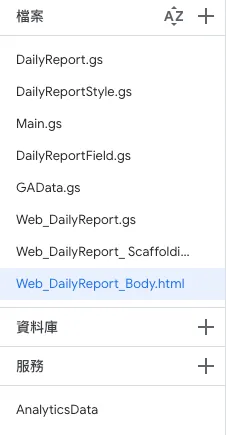
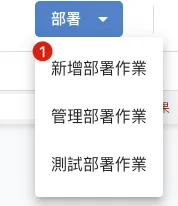
测试部署:
点击专案右上角「部署」->「测试部署作业」
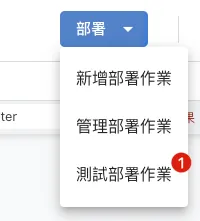
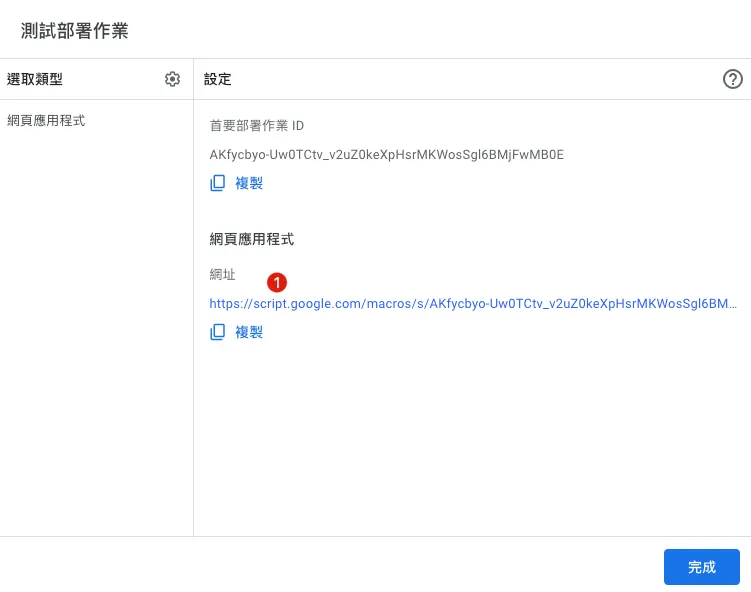
-
部署完成点击网址即可查看测试结果。
-
请注意此网址仅共一次性测试使用,如果程式码有调整要再重新点一次测试部署作业。
卡在 Loading… 内容没出来或出现伺服器错误,可以回到编辑器的「执行项目」页签查看错误讯息:
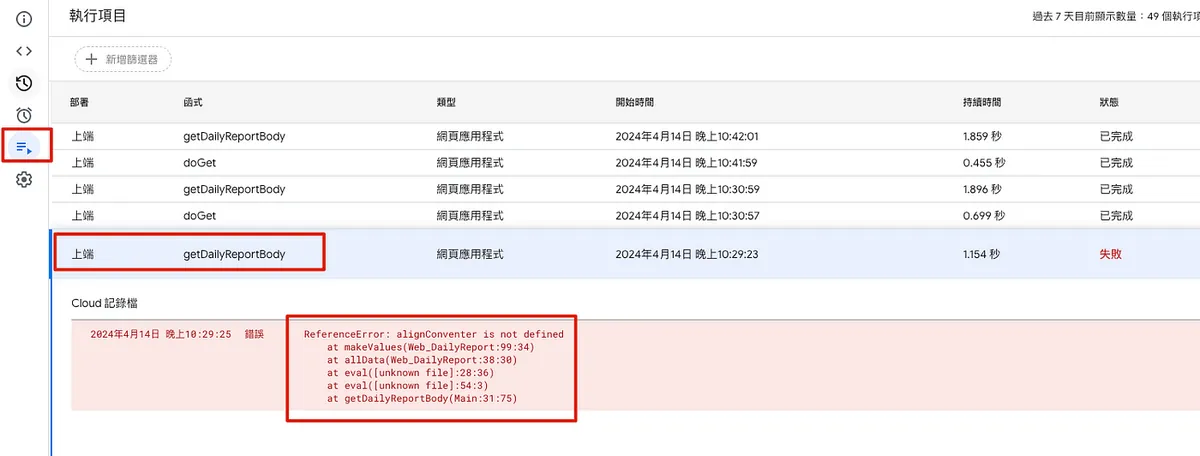
完成正式部署:
如果测试没问题就可以完成正式部署,释出网址。
点击专案右上角「部署」->「新增部署作业」-> 左上角「选取类型」->「网页应用程式」:
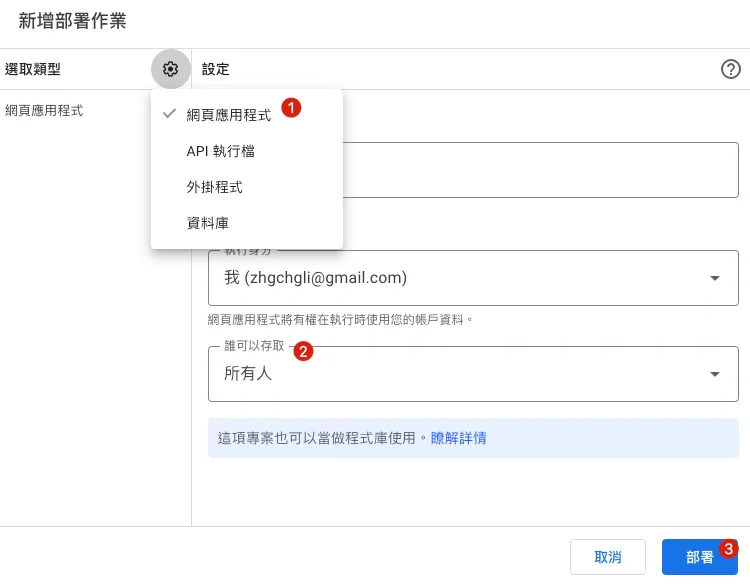
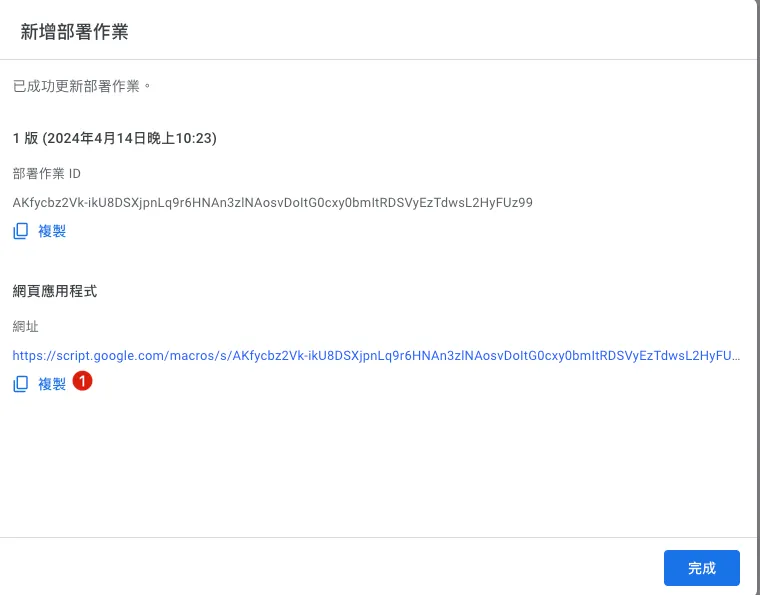
-
执行身份:预设为当前帐号(同 Google Apps Script 使用者)
-
谁可以存取:设为所有人只要知道网址的人都能存取、也可设为仅组织可存取,会先要求 Google 登入才能存取。
-
部署完成,取得网址。
程式码有更动需重新部署才会生效:
请注意当程式码有变动时,需要重新部署(网址不会变),更动才会生效,否则会一直是旧的。
点击专案右上角「部署」->「管理部署作业」:
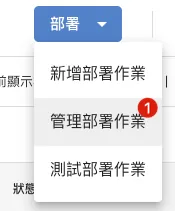
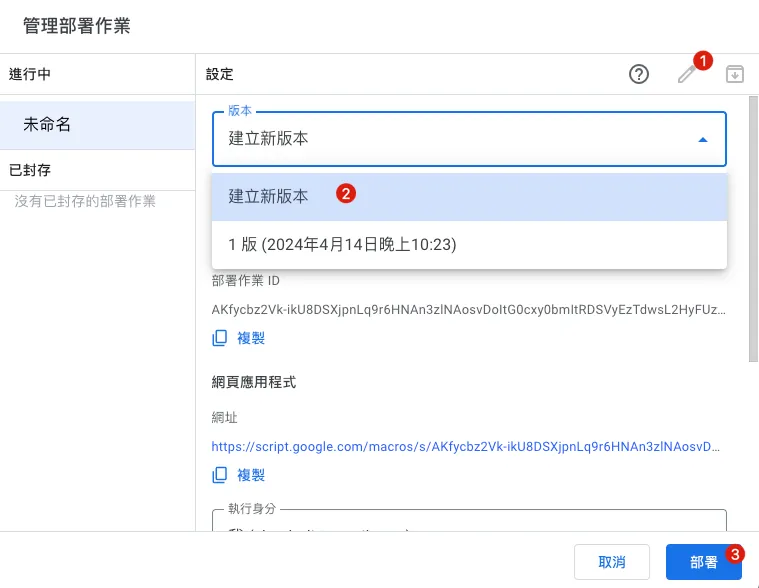
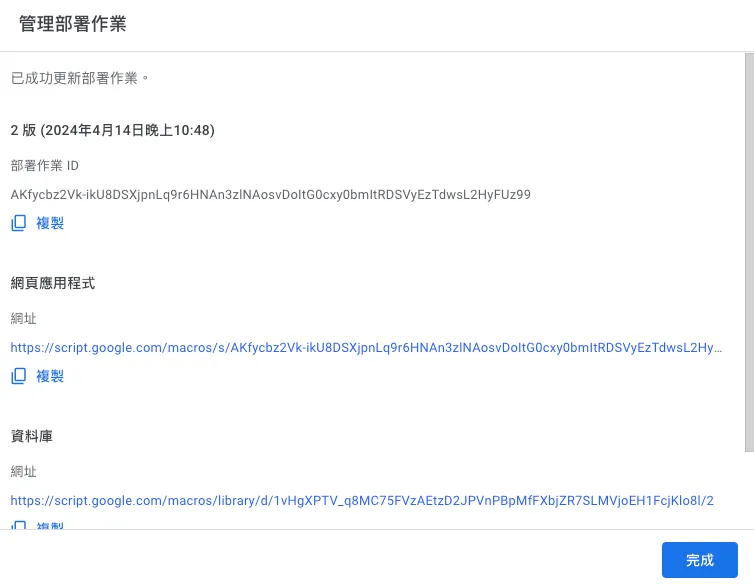
点击右上角「笔🖊️ ICON」-> 「版本」 ->「建立新版本」->「部署」。
部署完成后点击网址,或回到原网址重新整理即可看到新的更动结果。
🎉🎉完成!至此我们所有的 RPA 需求皆已完成。🎉🎉
最终成果:
(改程式回补本月数据,否则全新资料下只有昨日一笔)
完整 Google Sheet Demo:
-
Google Sheet: https://docs.google.com/spreadsheets/d/1-9lZCpsu3E7eDmO-lMkXJXQ6Y6KK4SiyU6uBODcDcFE/edit?usp=sharing
-
Web GUI URL: https://script.google.com/macros/s/AKfycbz2Vk-ikU8DSXjpnLq9r6HNAn3zlNAosvDoItG0cxy0bmItRDSVyEzTdwsL2HyFUz99/exec
-
Google Apps Script: https://script.google.com/home/projects/1vHgXPTV_q8MC75FVzAEtzD2JPVnPBpMfFXbjZR7SLMVjoEH1FcjKlo8l/edit
最后附上其他日常生活应用:
Robotic Process Automation with Google Apps Script — Github Repo Star Notifier to Line
Robotic Process Automation with Google Apps Script — Notion Database to Calendar
之前简易实现的 Notion to Calendar 功能。
实现方式是,我去串接 Notion API 捞取 Database 资料并套用产出 ICS 格式网页,部署成公开的网页;将此网址新增到 Apple Calendar 即可。
Main.gs :
// Constant variables
const notionToken = "XXXXX";
const safeToken = "XXXXX";

function doGet(e) {
  const ics = HtmlService.createTemplateFromFile('ics');

  if (e.parameter.token != safeToken) {
    return ContentService.createTextOutput("Access Denied!");
  }

  ics.events = getQuickNote();

  return ContentService.createTextOutput(ics.evaluate().getContent()).setMimeType(ContentService.MimeType.ICAL);
}

function debug() {
  const ics = HtmlService.createTemplateFromFile('ics');
  ics.events = getQuickNote();
  Logger.log(ics.evaluate().getContent());
}

function getQuickNote() {
  // YOUR FILTER Condition:
  const payload = {
    "filter": {
      "and": [
        {
          "property": "Date",
            "date": {
            "is_not_empty": true
          }
        }
        ,
        {
          "property": "Name",
            "title": {
            "is_not_empty": true
          }
        }
      ]
    }
  };
  const result = getDatabase(YOUR_DATABASE_ID, payload);
  var events = [];
  for (const index in result.results) {
    const item = result.results[index]
    const properties = item.properties;

    const id = item['id'];
    const create = toICSDate(item["created_time"]);
    const edit = toICSDate(item["last_edited_time"]);
    const startDate = properties['Date']['date']['start'];
    const start = toICSDate(startDate);
    var endDate = properties['Date']?.['date']?.['end'];
    if (endDate == null) {
      endDate = startDate;
    }
    const end = toICSDate(endDate);
    const type = properties['Type']?.['multi_select']?.[0]?.['name'];

    const title = "["+type+"] "+properties?.['Name']?.['title']?.[0]?.['plain_text'];
    const description = item['url'];

    events.push(
      {
        "id":id,
        "create":create,
        "edit":edit,
        "start":start,
        "end":end,
        "title":title,
        "description":description
      }
    )
  }
  return events;
}
// TO UTC Date
function toICSDate(date) {
  const icsDate = new Date(date);
  icsDate.setHours(icsDate.getHours() - 8);
  return Utilities.formatDate(icsDate, "GMT+8", "yyyyMMdd'T'HHmmss'Z'");// 20240304T132300Z
}

// Notion
function getDatabase(id, payload) {
  const url = 'https://api.notion.com/v1/databases/'+id+'/query/';
  const options = {
    method: 'post',
    headers: {
      'Authorization': 'Bearer '+notionToken,
      'Content-Type': 'application/json',
      'Notion-Version': '2022-06-28'
    },
    payload: JSON.stringify(payload)
  };
  const result = UrlFetchApp.fetch(url, options);
  return JSON.parse(result.getContentText());
}
ics.html :
BEGIN:VCALENDAR
PRODID:-//Google Inc//Google Calendar 70.9054//EN
VERSION:2.0
CALSCALE:GREGORIAN
METHOD:PUBLISH
X-WR-CALNAME:NotionCalendar
X-WR-TIMEZONE:Asia/Taipei
BEGIN:VTIMEZONE
TZID:Asia/Taipei
X-LIC-LOCATION:Asia/Taipei
BEGIN:STANDARD
TZOFFSETFROM:+0800
TZOFFSETTO:+0800
TZNAME:CST
DTSTART:19700101T000000
END:STANDARD
END:VTIMEZONE
<?
  for(const eventIndex in events) {
    const event = events[eventIndex];
    ?>
BEGIN:VEVENT
DTSTART:<?=event["start"]?>

DTEND:<?=event["end"]?>

DTSTAMP:<?=event["edit"]?>

UID:<?=event["id"]?>

CREATED:<?=event["create"]?>

LAST-MODIFIED:<?=event["edit"]?>

SEQUENCE:0
STATUS:CONFIRMED
SUMMARY:<?=event["title"]?>

DESCRIPTION:<?=event["description"]?>

TRANSP:OPAQUE
END:VEVENT
<?
  }
?>
END:VCALENDAR
同前文,部署成网页服务,点击专案右上角「部署」->「新增部署作业」-> 左上角「选取类型」->「网页应用程式」:
- 谁可以存取要选所有人,因为无法在加 Calendar 时进行 Google 登入验证。

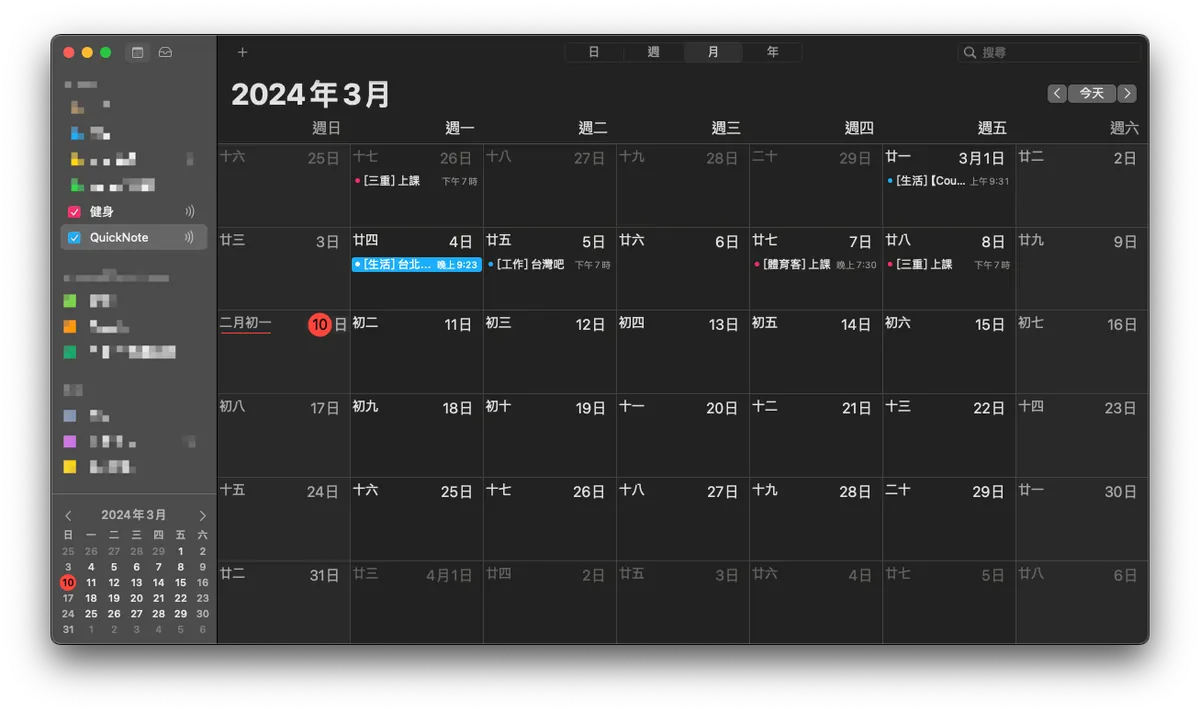
将网址新增至行事历订阅,完成 🎉🎉🎉🎉 !
工商时间
如果您与您的团队有自动化工具、流程串接需求,不论是 Slack App 开发、Notion、Asana、Google Sheet、Google Form、GA 数据,各种串接需求,欢迎与我 联络开发 。

留言 · Comments